JPG vs PNG vs WEBP for Social Media Images
Compare JPG, PNG and WEBP for social media photos, graphics and transparency. Choose the right format without wasting quality or file size.
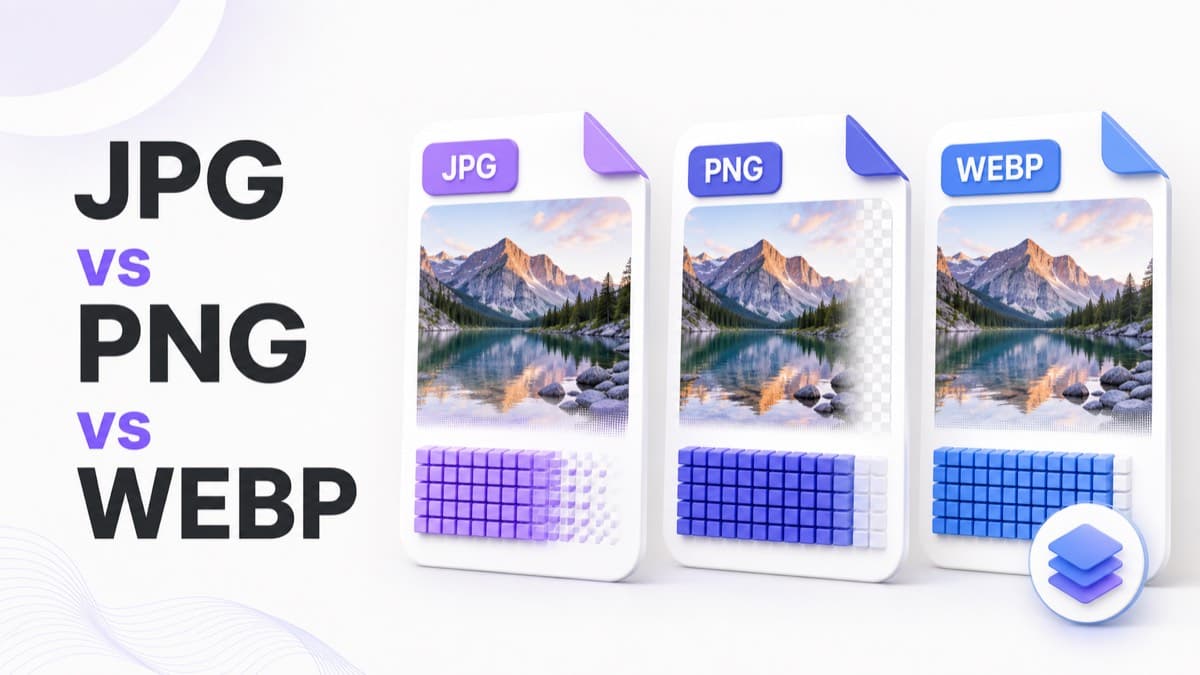
JPG, PNG and WEBP can all produce good social media images, but they solve different problems. The right format depends on the source content, transparency requirements, platform support and how much compression the artwork can tolerate.
Quick format comparison
| Format | Strongest use | Main trade-off |
|---|---|---|
| JPG | Photographs and complex gradients | Lossy compression and no transparency |
| PNG | Logos, flat graphics, text and transparency | Larger files for photographic detail |
| WEBP | Efficient photos or graphics where supported | Destination support should be verified |
Choose JPG for most photographs
JPG compresses continuous tone efficiently, making it a practical default for portraits, products, events and landscapes. The compression is lossy: saving repeatedly can introduce halos, blockiness and banding. Export from the clean master once, and inspect hair, fine texture, gradients and text before lowering quality.
Choose PNG for sharp graphic edges
PNG preserves flat colors, line art, interface screenshots and type without JPG’s characteristic edge artifacts. It can also preserve transparency. The cost is file size, especially when the image contains photographic noise or complex color variation. A PNG photograph is often much larger without producing a visible social-feed benefit.
Choose WEBP when efficiency and support align
WEBP can encode both photographs and graphics efficiently and may preserve transparency. It is useful for web delivery and supported upload workflows, but not every social placement handles every format consistently. For a critical campaign, confirm the destination accepts WEBP and does not convert it in an unexpected way.
Transparency is a workflow decision
A transparent logo may need PNG or WEBP, but the platform can still place it on a background, flatten it or convert the upload. If transparency is not essential, a deliberate solid background makes the final appearance more predictable.
Quality settings that make sense
For JPG and lossy WEBP, start near quality 90 and inspect the exported file at 100 percent. Reduce quality only when file size is a real constraint. Small text, sharp color boundaries and smooth gradients reveal compression damage first. Do not repeatedly open and resave the exported result.
A practical decision sequence
- Is transparency required and supported? Choose PNG or transparent WEBP.
- Is the image mainly a photograph? Start with JPG.
- Is it a logo, diagram or text-heavy graphic? Compare PNG with high-quality WEBP.
- Does the destination specify an accepted format? Follow that requirement.
- Inspect the final upload after platform recompression.
The social image export tool supports JPG, PNG and WEBP, with quality control for photographic formats. Pair the format choice with the correct dimensions from the social media image size reference.
What image compression actually changes
Compression reduces the information needed to store an image. Lossless compression reorganizes data so the original pixels can be reconstructed. Lossy compression discards visual information that the encoder considers less noticeable. JPG is lossy. PNG is normally lossless. WEBP can use either approach, depending on how the file is created.
Lossy compression is not automatically bad. A carefully encoded photograph can be dramatically smaller with no obvious loss at normal viewing size. Problems appear when quality is pushed too low, when the image is saved repeatedly, or when sharp graphics are encoded with settings intended for photographs.
How JPG behaves with real social media content
JPG divides an image into compressed blocks and simplifies color detail. It performs well on photographs because natural scenes already contain gradual variation. At lower quality, look for halos around type, block patterns in shadows, mosquito-like noise around edges and visible bands in smooth skies.
Use a clean RGB master and export only after resizing and cropping are complete. If a platform recommends JPG for a photographic cover, follow that guidance. Raising quality from 95 to 100 can create a much larger file with little visible benefit, so judge the actual output rather than assuming the maximum number is always professional.
When PNG earns its larger file size
PNG is excellent for screenshots, diagrams, logos, interface illustrations and flat artwork. It preserves exact edges and can store an alpha channel for transparency. A simple graphic may compress efficiently, while a detailed photograph can become very large because PNG tries to preserve every variation.
Transparency is useful for reusable assets, but many social placements expect a complete rectangular image. If the platform flattens the file, transparent pixels may become white, black or another background color. Test the destination or place the artwork on an intentional background before upload.
Understanding WEBP in a publishing workflow
WEBP supports efficient lossy photographs, lossless graphics and transparency. It is widely useful on the web, but a social publishing workflow depends on what the receiving platform accepts and how it processes the upload. Browser support does not automatically mean every platform placement accepts the format as an original upload.
Use WEBP when you have confirmed compatibility and want an efficient export. Keep an editable master and be prepared to provide JPG or PNG when a scheduling tool, advertising interface or legacy workflow rejects it.
Format choice for common asset types
- Portrait or event photograph: high-quality JPG is usually the practical starting point.
- Logo on a transparent background: PNG is dependable when transparency is supported.
- Text-heavy announcement graphic: compare PNG with high-quality WEBP and inspect edges.
- Screenshot: PNG often protects small interface text better than JPG.
- Photographic banner with strict file limits: use JPG and tune quality while inspecting gradients and text.
- Web-delivered editorial image: WEBP can be efficient when the full delivery chain supports it.
Color profiles, metadata and unexpected shifts
Social platforms may strip metadata and convert color profiles. Work in a standard web-oriented RGB space for predictable results. Extremely wide-gamut colors can shift after processing. Check brand colors and skin tones in the final uploaded preview rather than relying only on the source editor.
A practical quality test before publishing
- Export one representative image in the likely format.
- View it at 100 percent and at realistic feed size.
- Inspect text edges, faces, gradients and dark areas.
- Compare file size against any platform limit.
- Upload a private or draft test when the placement is critical.
- Check the platform-processed version on a phone and desktop.
- Keep the source and final export instead of relying on a downloaded social copy.
Do not confuse file format with dimensions
Choosing PNG does not correct the wrong aspect ratio, and choosing JPG does not make a small source high resolution. Format, dimensions, crop and quality are separate decisions. Establish the correct canvas and composition first, then select the encoding that preserves that content efficiently.
Compare exact canvases in the social media image dimensions guide, then use the JPG, PNG and WEBP social image exporter to test the formats against the same crop.
Frequently asked questions
Practical answers to common questions about JPG vs PNG vs WEBP for social media.
01Is PNG always higher quality than JPG?+
PNG is lossless, but it is not automatically the best choice. Photographs usually look excellent as a well-encoded JPG at a much smaller file size.
02Does social media preserve transparent backgrounds?+
Not always. Some destinations flatten transparency or convert the upload. Verify the target placement before relying on a transparent PNG or WEBP.
03What quality setting should I use for a social media JPG?+
Quality around 90 is a sensible starting point. Inspect text, hair, gradients and dark areas, then reduce quality only when file size is genuinely important.
04Will every social platform accept WEBP uploads?+
Support varies by platform, placement and publishing tool. Confirm the complete workflow before choosing WEBP for a critical campaign, and keep a JPG or PNG fallback.