Mirror Image Online Free | Reverse Mirror Photo
or drag & drop, or paste an image
JPG, PNG, WebP · Up to 50 MB / 40 MP
Need a photo to face the other direction? Mirror an image online with SocialCropKIT, a free photo-flipping tool that works in your browser. Turn a picture from left to right, flip it upside down, correct a backwards selfie, or make a mirrored design without opening complicated editing software. Choose an image, preview the result, and download your finished picture.
How to Mirror an Image Online for Free
Mirroring a picture sounds technical, but the basic edit takes only a few clicks. You do not have to cut out the subject, redraw anything, or create a new image with AI. A mirror transformation rearranges the pixels already present in your original file. The background, people, logos, objects, and any lettering move together.
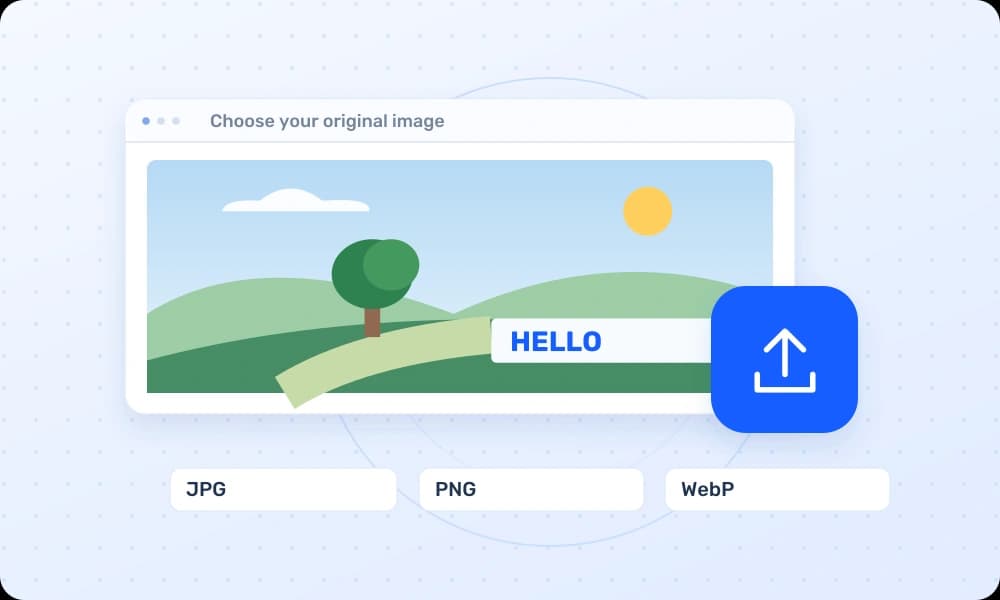
Step 1: Upload your picture
Choose a JPG, PNG, or WebP image from your device, or drag and drop the file into the upload area where supported. For the clearest result, start with the highest-resolution original you have. A low-resolution social-media screenshot will remain low resolution after flipping; reversing it cannot restore details that were already lost.
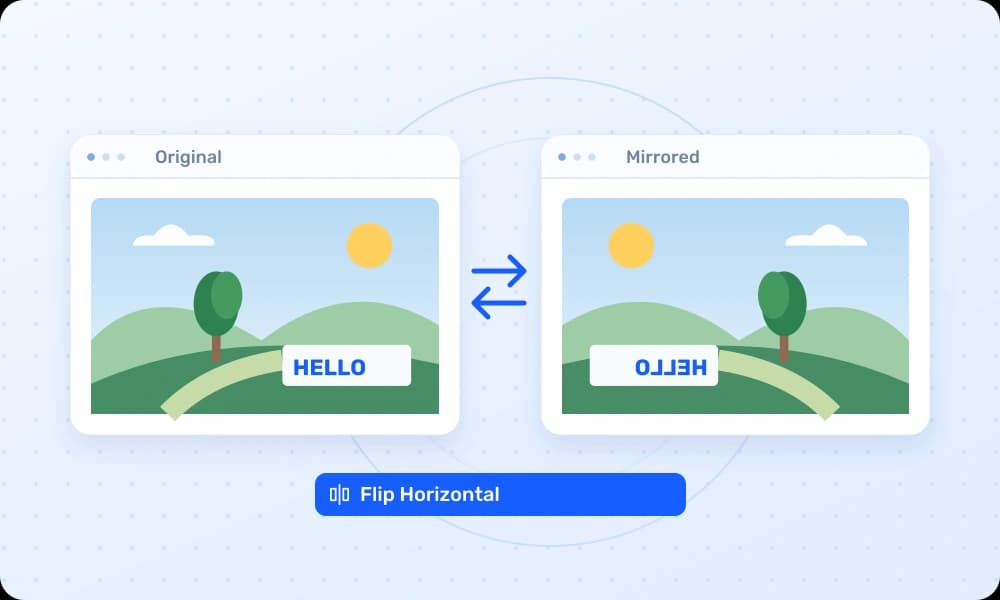
Step 2: Choose horizontal or vertical mirror
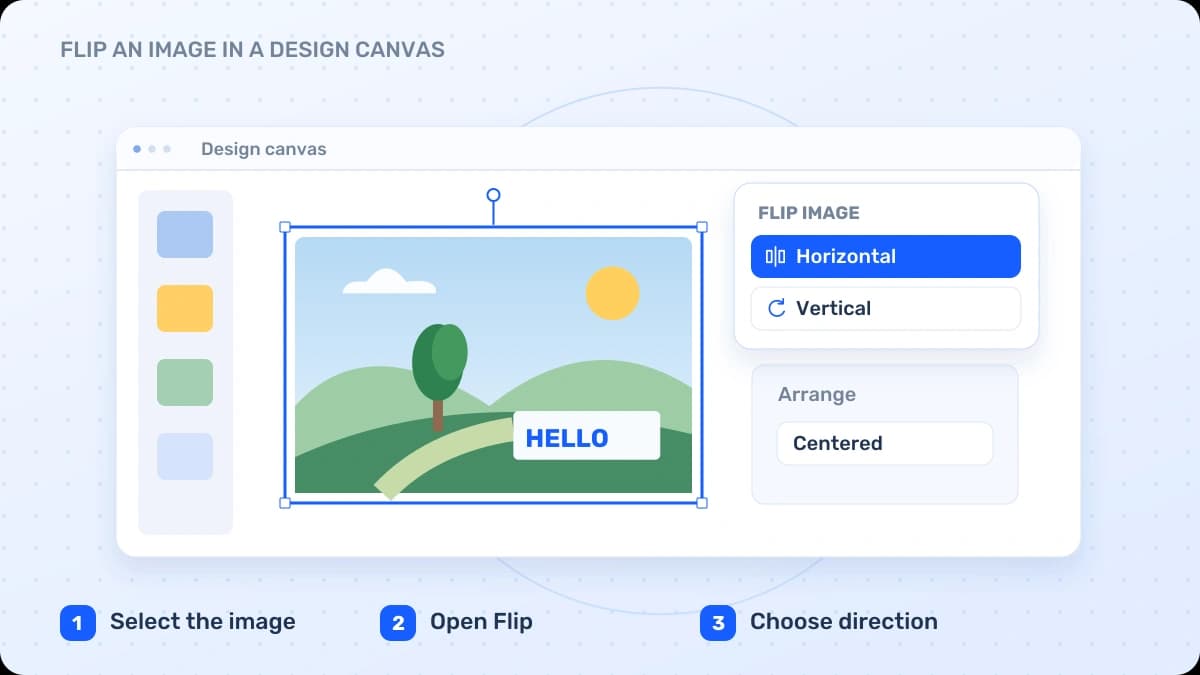
Select Flip Horizontal to swap the left and right sides of the photo. Choose Flip Vertical to reflect the image from top to bottom. If you are fixing a selfie or a backwards label, horizontal is usually the option you want. Use the preview to check the direction of faces, text, signs, and background objects.
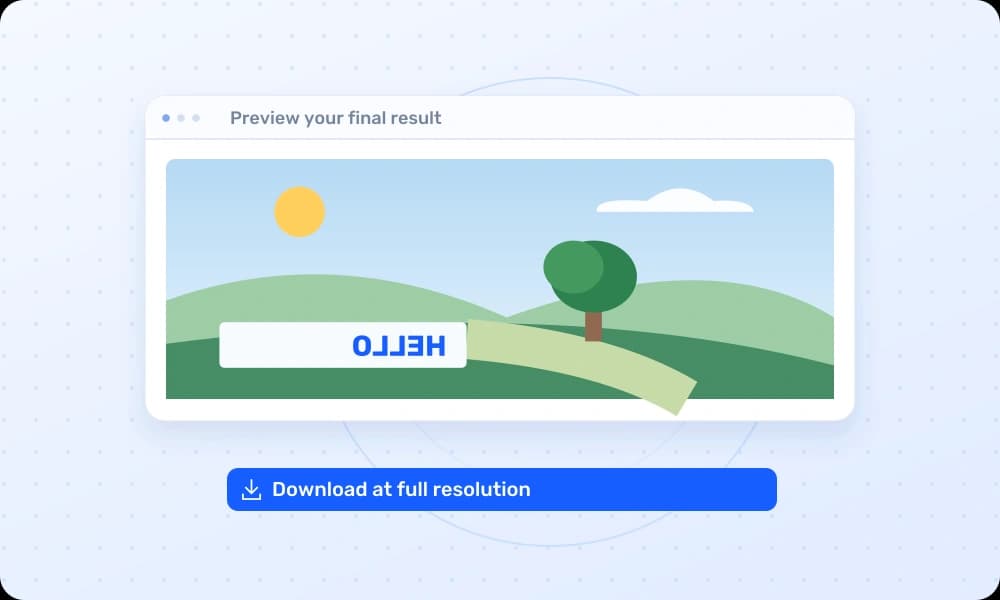
Step 3: Preview and download the reversed photo
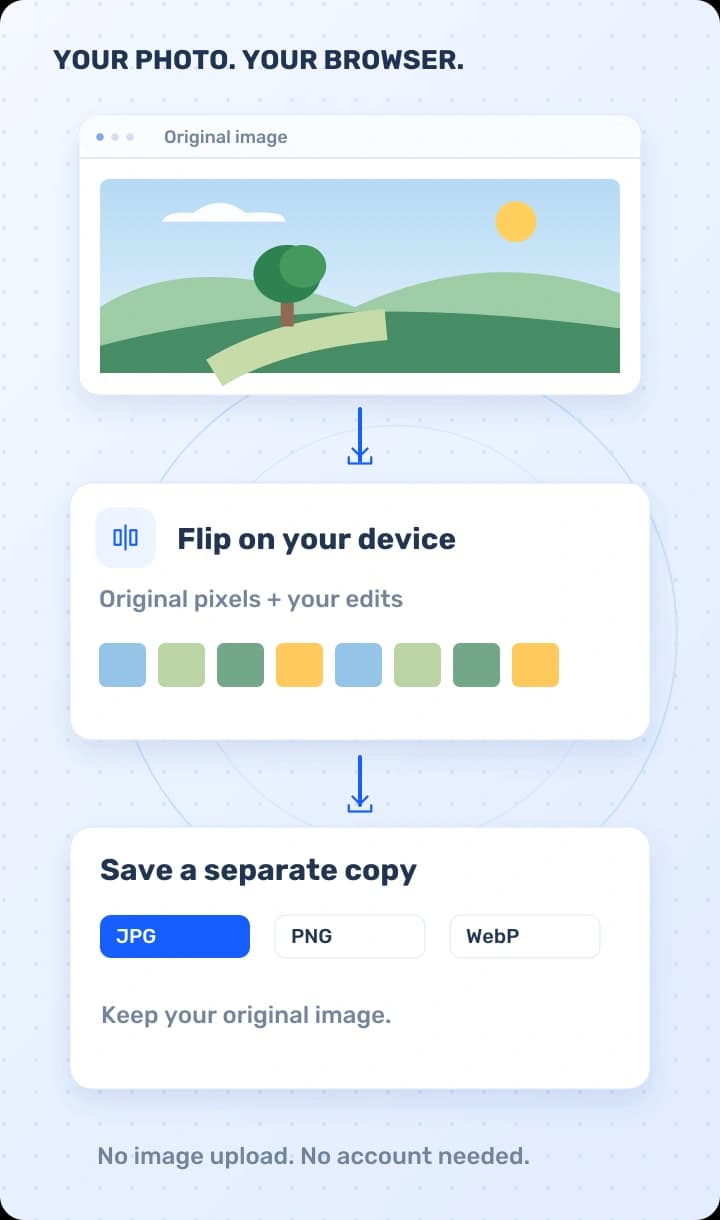
Compare the edited image with the original before saving it. If the direction is wrong, undo the flip or start over with the unedited image. Then choose a supported output format and download the result. The browser saves a separate file, so you can keep the original photo for future edits.
Flip Images Horizontally or Vertically
Both commands are often called mirror image, but they create different results. The right choice depends on what you are trying to correct. A horizontal flip is a reflection across a vertical line. Imagine standing in front of a mirror: an object on the left appears on the right. A vertical flip is a reflection across a horizontal line, so content from the top appears at the bottom.
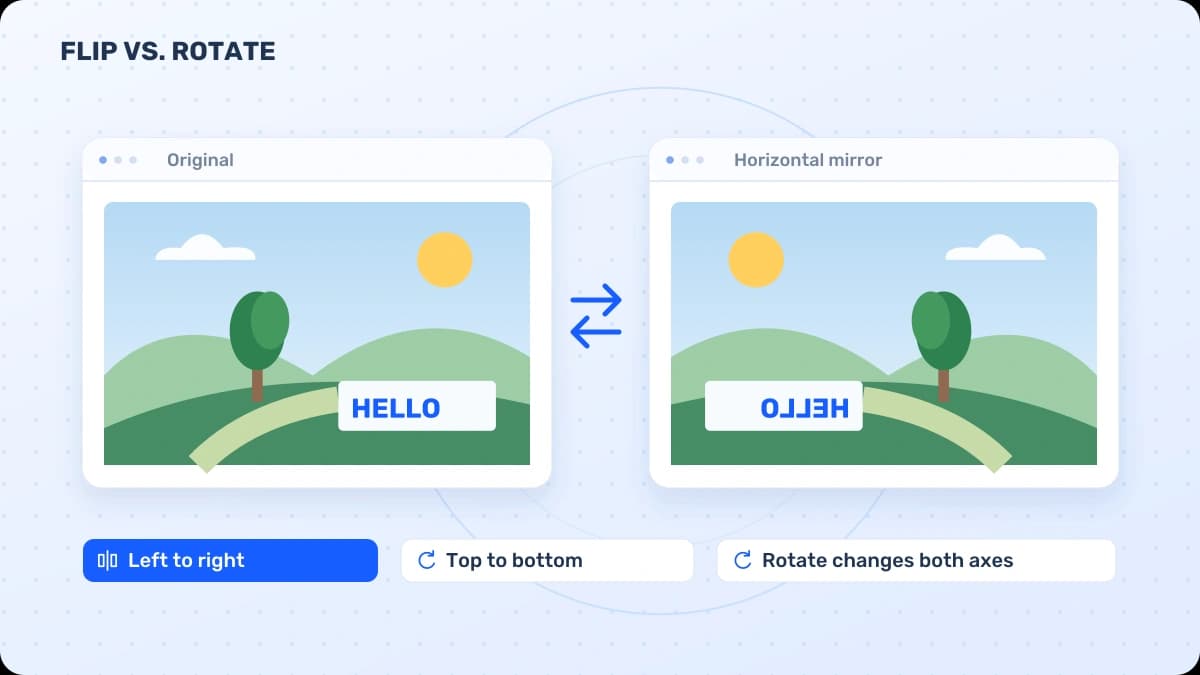
Flip an image horizontally: left to right
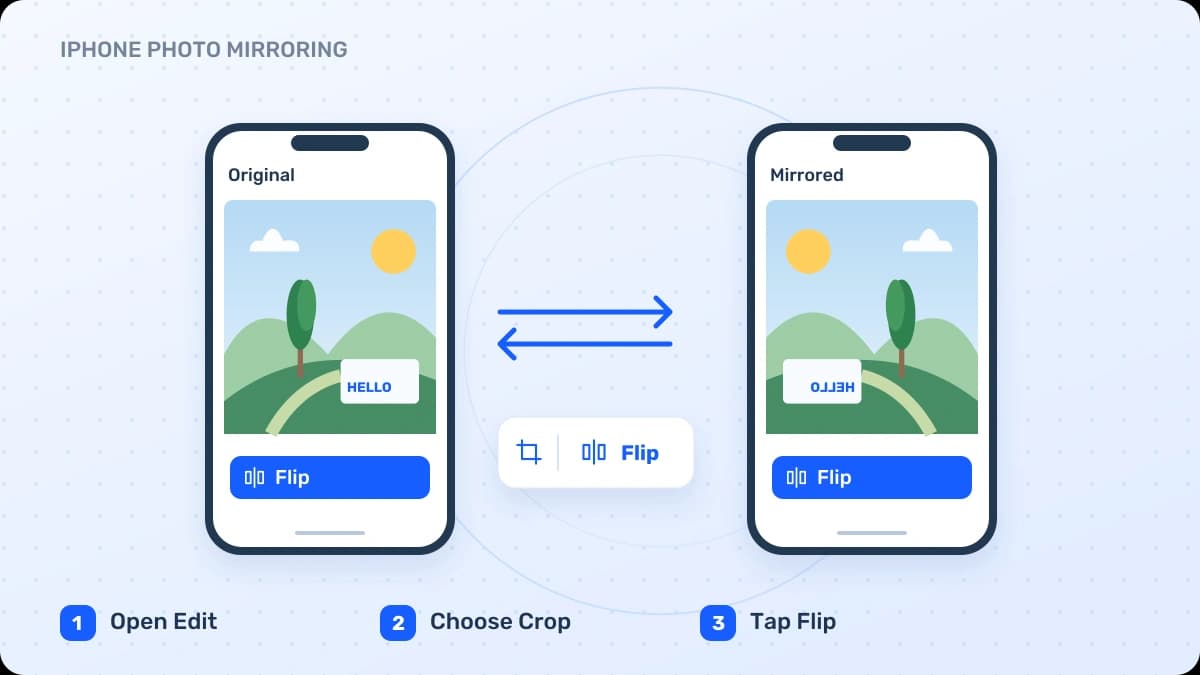
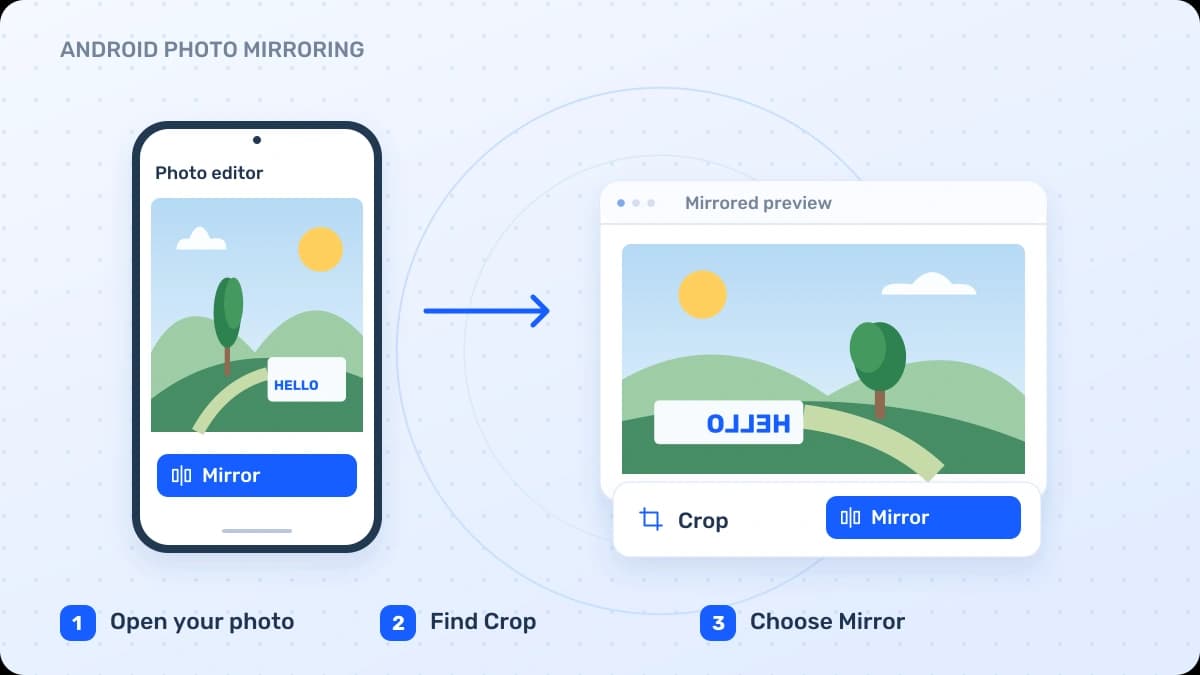
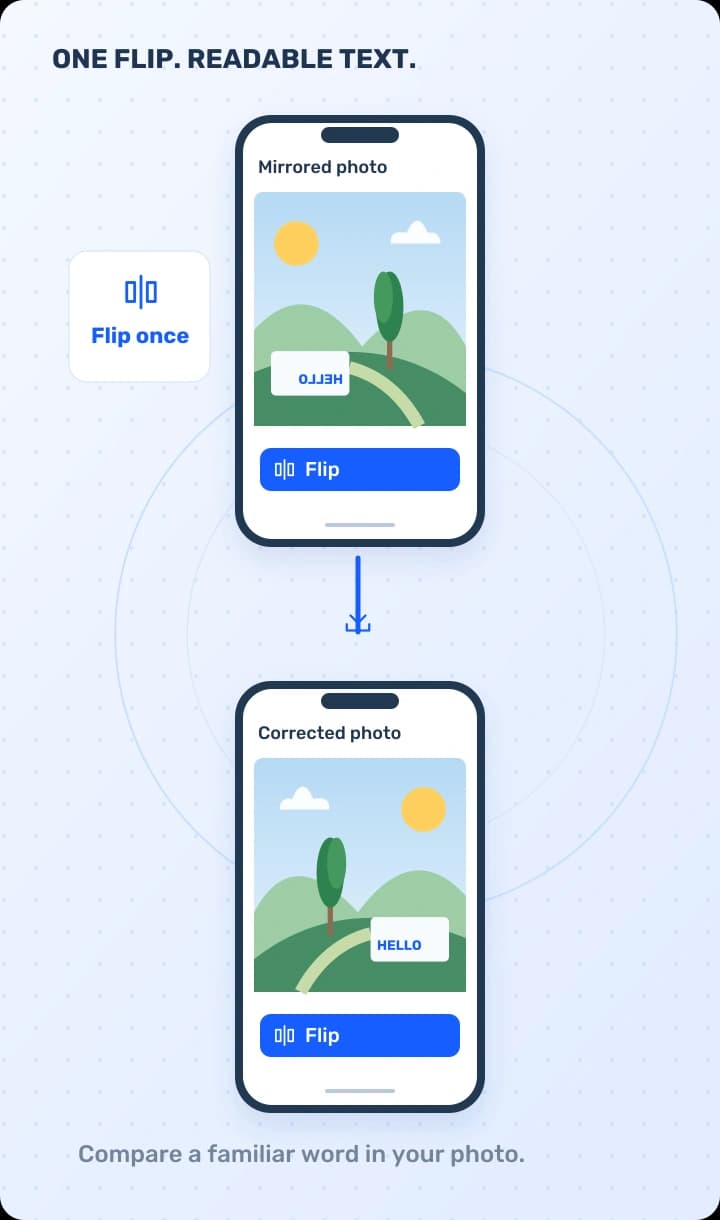
Use horizontal mirroring to reverse a portrait, make a product face inward toward a headline, correct a selfie, or prepare text for certain transfer-printing methods. Every pixel switches sides. If a shirt in the picture says “HELLO,” the word will appear backwards in the flipped result. That is normal: ordinary image mirroring does not recognize individual letters and keep them readable.
Flip an image vertically: top to bottom
Vertical mirroring is useful when experimenting with upside-down graphics, reflections beneath a subject, or designs that need a top-to-bottom inversion. It is not the same as simply turning a photo 180 degrees. If an image is rotated 180 degrees, its top and bottom and its left and right orientation change together; a vertical flip reverses only the top-to-bottom direction.
Mirror versus rotate: choose the right action
Rotation spins an image around its center. Flip reverses it along one axis. If your landscape photo is sideways, use a 90-degree rotation. If a selfie faces the wrong direction or a photograph contains a backwards sign, start with horizontal flip. SocialCropKIT brings those orientation controls into one simple editing workflow, but the final direction is always your choice.
Reverse Photos and Fix Mirrored Selfies
Front-facing cameras can confuse even experienced phone users. The live selfie preview often behaves like a mirror, while the saved picture may display a different orientation depending on the camera settings. That is why a face, hairstyle, or background sign may look unfamiliar after the photo is taken.
To unmirror a selfie, upload the saved photograph and apply one horizontal flip. Check a recognizable detail, such as text on a shirt or a sign behind you, rather than guessing by how your face feels. If the letters become readable and the scene looks correct, export the photo. If they turn backwards, revert to the previous orientation. A second horizontal flip returns a picture to its initial direction.
A reverse-photo tool can also help with scanned photographs, hand-drawn illustrations, and graphics saved with the wrong orientation. It does not perform reverse image search, identify where a picture came from, or locate duplicate images on the internet. Those are separate search functions.
Create Mirror Effects for Social Media and Creative Designs
Mirrored compositions are not limited to correcting mistakes. A reflection can help a busy image feel balanced, create a playful symmetrical portrait, or change the direction of a product shot so the subject points toward important text. For Instagram posts, Stories, mood boards, and presentation covers, small orientation changes can improve the overall composition.
Build a side-by-side reflection
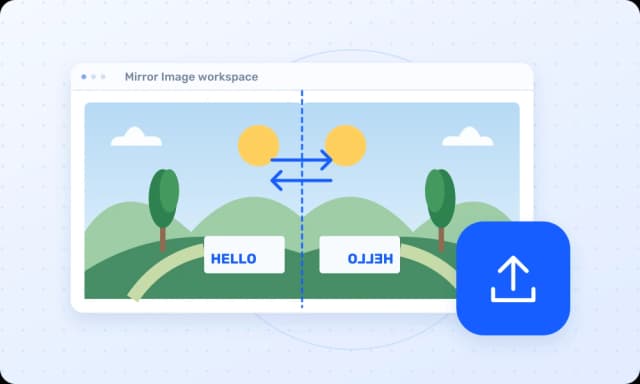
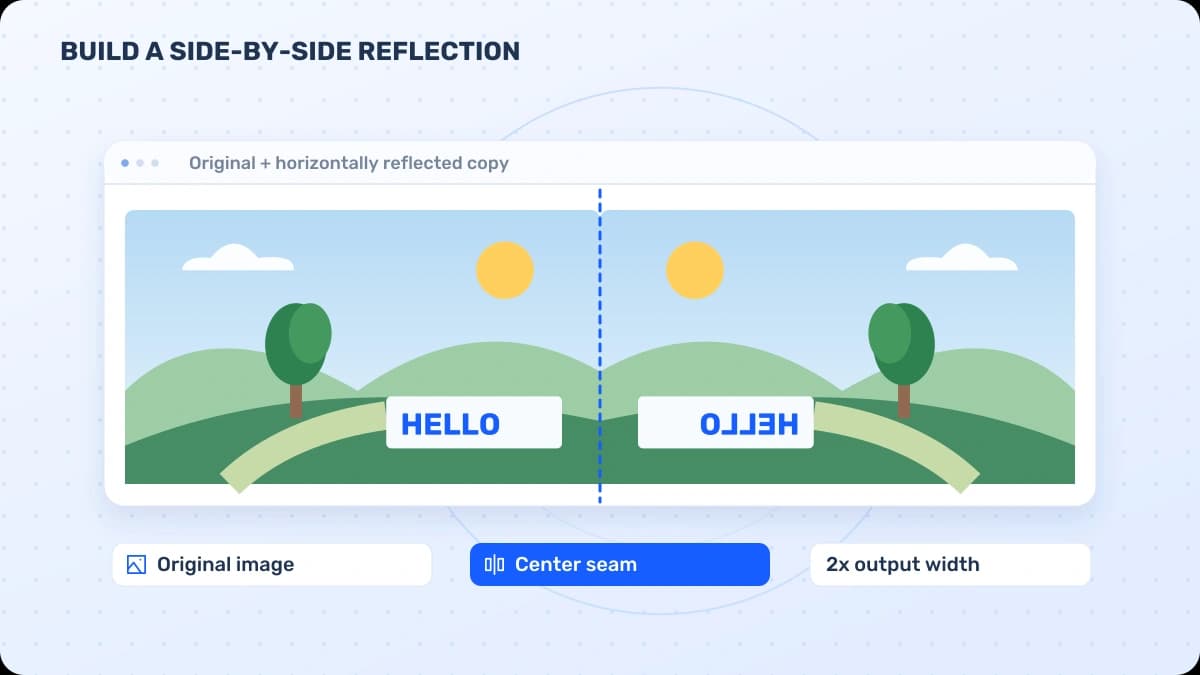
A reflection effect uses a duplicate of the original picture next to a flipped copy; it is different from replacing a single photo with its mirror version. When working with a split or side-by-side reflection mode, align the center seam carefully. Buildings, patterns, and abstract textures tend to produce interesting results. Be aware that this arrangement can produce unnatural-looking faces or repeated lettering.
Mirror JPG, PNG and WebP Images
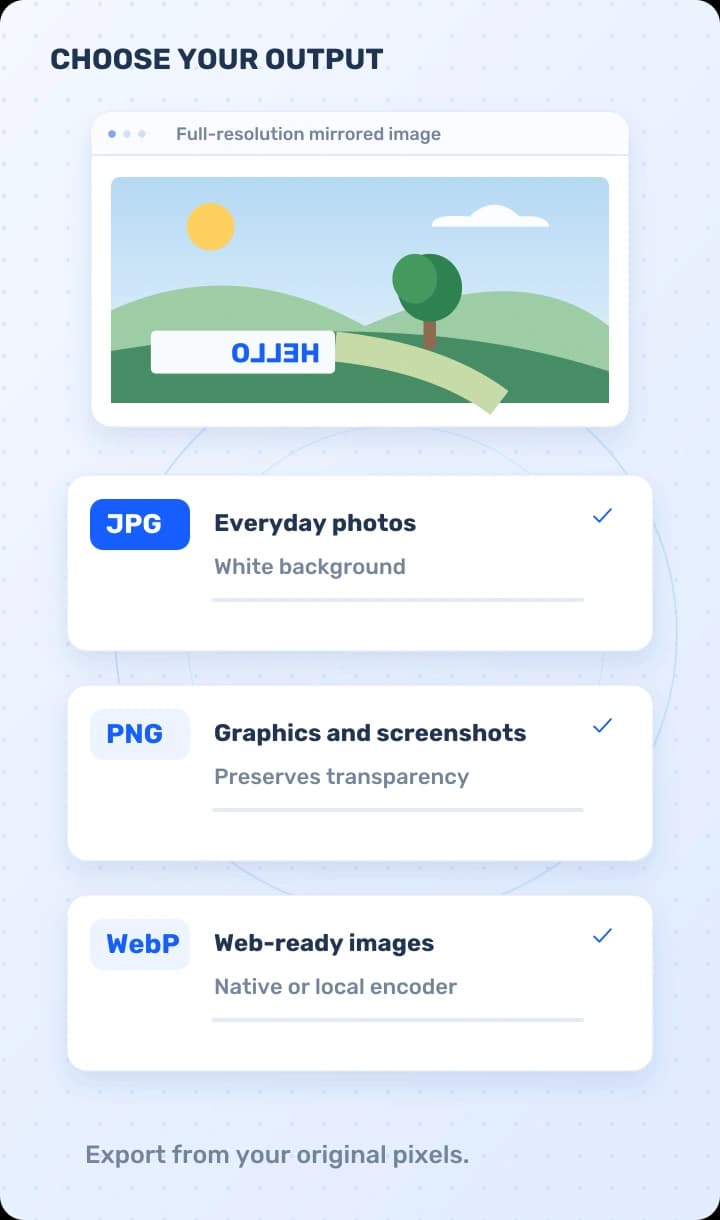
Choosing the right export format matters as much as choosing the right direction. JPG is widely compatible with phones, websites, and social platforms, and is often convenient for ordinary photographs. PNG is useful for logos, illustrations, screenshots, and graphics that need transparent backgrounds. WebP can offer efficient file sizes for web use, although the platform where you plan to publish the picture must support it.
Mirroring itself does not need to add new objects or change the image's intended dimensions. However, exporting through an image encoder can change file size, metadata, compression, color handling, or transparency. JPEG does not support transparency. Check your exported image at full size, especially if you are preparing a logo, a print design, or a detailed screenshot.
The SocialCropKIT editing experience is designed around straightforward browser-based processing. That means the image can be decoded, flipped, previewed, and exported on your device instead of being uploaded to an image-processing service. You do not need an AI subscription or a paid editing API to perform a normal mirror transformation.
Why Choose a Free Online Mirror Image Tool?
A dedicated mirror tool avoids unnecessary steps. You should not have to create a full design project just to reverse the direction of a single picture. SocialCropKIT keeps the essential controls close to the preview, so you can make an edit without hunting through advanced panels. Use a phone, laptop, or desktop browser to prepare an image wherever you already have it saved.
Working locally also suits users who prefer not to send personal photos to a separate image-editing server. As with any website, normal hosting requests and any disclosed analytics may still occur; consult the Privacy Policy for the actual site practices. For the cleanest workflow, edit a copy of your photo and check that you have the rights to use the content you upload.
If you want instructions for a specific device or program, explore the iPhone mirroring guide, Android photo-flipping guide, or Canva image-flip tutorial. All three explain when to use the built-in option and when a simple browser editor is more convenient.
Frequently Asked Questions
How do I mirror an image online for free?
Upload a supported photo, choose Flip Horizontal or Flip Vertical, inspect the preview, and download the result. Horizontal mirroring reverses left and right; vertical mirroring reverses top and bottom.
Can I reverse a photo without losing quality?
A horizontal or vertical flip can keep the original width and height. The final result also depends on export settings: lossy formats such as JPG can introduce compression changes. Keep the original file, export at the intended resolution, and inspect the saved result rather than judging only the preview.
Does mirroring reverse text inside an image?
Yes. A normal mirror flip reverses the entire image, including photographed writing, signs, and logos. It does not selectively keep text readable. If you need letters to remain unchanged, edit that text separately in a design application or preserve that region before flipping.
Is a mirror image the same as rotating 180 degrees?
No. Horizontal mirroring reverses only left and right. A 180-degree rotation turns the entire picture upside down and swaps both directions.
Is a mirror image the same as a reverse image search?
No. A mirror image is a flipped version of a picture. Reverse image search means using a picture as a search query to find visually related images or their sources online. SocialCropKIT is for editing orientation, not searching the web for image matches.
Can I mirror a PNG without losing transparency?
Yes, if you preserve an alpha-compatible output such as PNG and the editor handles transparency correctly. JPG does not support transparent backgrounds.