Why Social Platforms Crop Your Images: How to Stop Losing the Subject
Learn why feeds, profile masks and responsive banners crop images differently, and how to protect faces, logos and text before publishing.
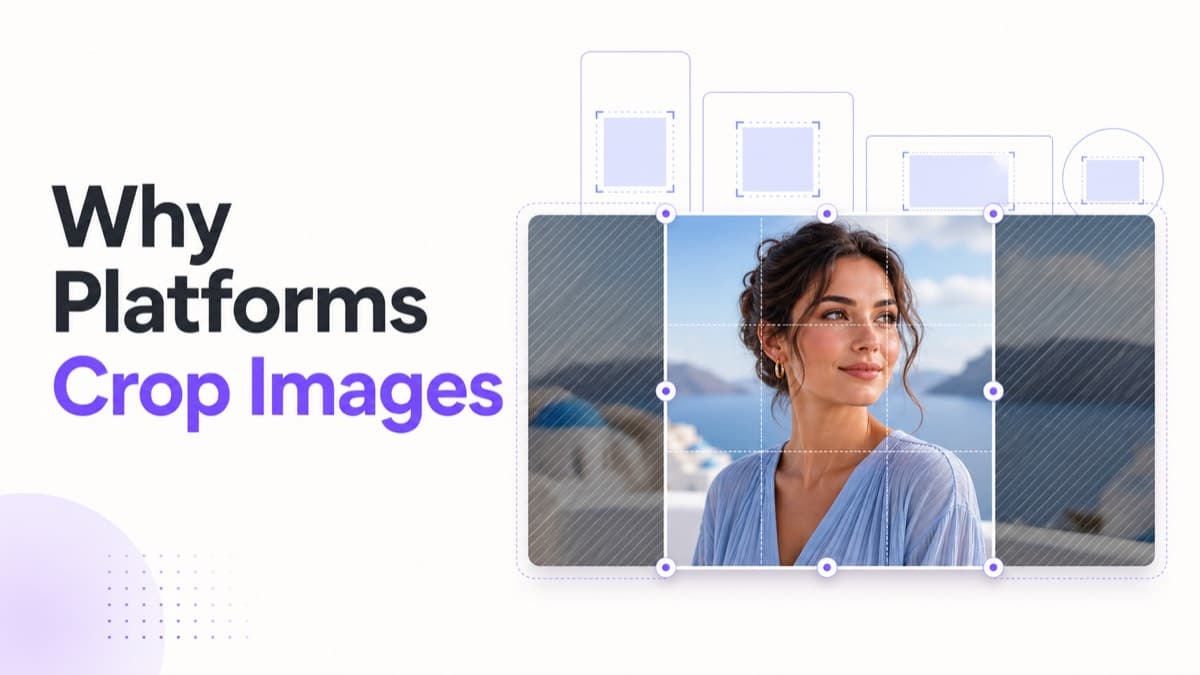
Social platforms crop images because one uploaded file often appears in several containers. A profile photo can show as a circle beside a comment, a larger circle on a profile and a small notification icon. A cover image may span a desktop header but display through a narrower mobile window. The platform changes the visible region to fit each context.
The uploaded file and visible frame are different things
Your file has fixed pixel dimensions. The interface around it is responsive. When the container ratio does not match the file, the platform must either leave empty space or remove part of the image. Most feeds and profile components choose a full-bleed result, so cropping is common.
Five reasons the subject gets cut off
- Ratio mismatch: a landscape source is placed inside a square or portrait frame.
- Circular masking: profile corners disappear even though the uploaded file remains square.
- Responsive covers: desktop and mobile headers reveal different widths or heights.
- Preview containers: feed cards and grids use temporary thumbnail crops.
- Interface overlays: labels, buttons or captions cover image areas without changing the file.
Protect faces and products with a focal-point plan
Identify the one detail that must survive every placement. Keep that focal point away from edges, then reposition it per crop. A face can sit higher in a portrait post, closer in a profile image and nearer the center in a responsive banner. Independent positioning is more dependable than one automatic center crop.
Design profile images for the circle
Preview the square upload through a circular guide. Leave padding around heads and logos, simplify fine detail, and avoid text near corners. The circle overlay should guide composition only; the downloaded source should normally remain a standard square file.
Treat banner edges as flexible background
Place essential text, logos and faces in the most stable central region. Use scenery, color or texture near the sides so losing those areas does not change the message. For YouTube channel art, use the verified safe-area overlay available in the editor; do not assume it applies to other platforms.
Fix an existing crop without degrading quality
- Return to the original source rather than editing a compressed social download.
- Select the exact destination preset.
- Use Fill, then drag the focal point into the correct position.
- Reduce zoom or switch to Fit if important content cannot remain inside the frame.
- Choose a solid or blurred background when Fit introduces empty space.
- Export once at the target dimensions.
Use the independent social media crop editor to correct each placement without applying the same movement to every version. For shape fundamentals, read the social media aspect ratio guide.
Automatic cropping is based on containers, not creative intent
A platform can detect a face or favor the center of an image, but it cannot reliably know which detail carries the message. A product and a person may both appear in the frame. Text may be intentionally positioned in negative space. The background may contain a second subject that matters to the story. Automatic cropping optimizes for the component it needs to fill, not for the communication goal of the artwork.
This is why a technically correct upload can still look wrong. The image may satisfy file requirements while the visible thumbnail removes the headline or places the subject against an uncomfortable edge.
Responsive layouts create several crops from one upload
Desktop headers are wide, mobile screens are narrow, and app interfaces reserve different areas for buttons and navigation. A responsive platform may scale and crop a cover dynamically instead of maintaining one fixed viewport. The uploaded pixels do not change; the window through which users see them changes.
Design responsive assets so the center carries the identity and the edges provide flexible atmosphere. A logo, face or essential phrase should not depend on the outermost portion of a banner. Test the page at more than one screen width after publishing.
Grid previews and feed previews may not match the opened image
Some networks show a tidy grid of thumbnails even when the original posts use different ratios. A portrait image can therefore appear cropped in the profile grid and open correctly in the feed. This behavior is not necessarily an export failure. Decide whether the grid preview matters to the account’s visual system, and compose the central region accordingly.
How rotation and zoom affect the crop boundary
Rotating an image changes the size of the rectangular area needed to cover a frame. Corners move inward, so Fill may require additional scaling. If a rotated photograph suddenly loses more content, reduce the angle, lower zoom or switch to Fit. Rotation should correct a horizon or support a deliberate layout, not compensate for an unsuitable source.
Using backgrounds when the complete image must remain visible
Fit mode is valuable for product photography, artwork, screenshots and any source where cropping would remove necessary information. Empty areas can be handled with a solid brand color, transparency when the format and destination support it, or a blurred copy of the source. A blurred background should remain quiet enough that the fitted image is clearly primary.
Avoid adding unrelated gradients simply to fill space. The background is part of the final design and should reinforce the image rather than make the resize look accidental.
Diagnosing a crop problem step by step
- Confirm whether the problem appears in the uploaded file, feed preview, profile grid or opened view.
- Compare the source ratio with the visible container ratio.
- Check for a circle mask or interface overlay.
- Return to the original source instead of editing the platform-compressed copy.
- Move the focal point before increasing zoom.
- Use Fit with an intentional background if no crop can preserve all required content.
- Test the exported asset in the current destination interface.
Designing safe compositions without inventing guarantees
Safe areas are useful when they are documented, but no overlay can account for every translation, interface experiment or device. Use them as minimum guidance rather than a license to pack content against the boundary. Shorter copy, larger type and additional negative space make artwork more resilient.
What to do when a platform changes its display
Keep master files and avoid flattening text into the only available source. When a platform updates its layout, verify the current specification, reopen the master and create a new crop. Do not repeatedly crop an already cropped export. A centralized preset configuration makes future updates faster and reduces the chance of inconsistent legacy templates.
See the current image size reference for the available placement canvases. When the subject needs different positioning in a cover, profile and Story, use the social crop editor with independent preset controls rather than applying one global crop.
Frequently asked questions
Practical answers to common questions about why social media crops images.
01Why is my profile picture cut into a circle?+
Many platforms apply a circular display mask to a square upload. Keep the subject inside the central circle and leave extra room near the corners.
02Can safe areas guarantee that nothing will be covered?+
Only use documented safe areas as guidance. Interface controls, translations, device sizes and platform updates can still change the visible region.
03Why does the grid thumbnail crop differently from the opened post?+
Profile grids often use uniform thumbnail containers while the opened post preserves its publishing ratio. Compose the central region carefully when the grid appearance matters.
04Does rotating an image create more cropping?+
Often, yes. Rotation increases the rectangular area needed to cover the frame, so Fill mode may scale the source further and remove additional edge content.