How to Flip an Image in Canva: Horizontal and Vertical Mirroring
Sometimes the smallest design adjustment makes the biggest difference. A product may face the wrong direction, a portrait may pull attention away from a headline, or you may want a symmetrical mirror effect for a social-media graphic. Canva lets you flip supported images and design elements horizontally or vertically, and the operation is different from rotation. Here is how to choose the correct control and avoid the common mistakes that leave text or logos backwards.
 By John D.SocialCropKIT Editorial
How to Flip an Image in Canva on Desktop
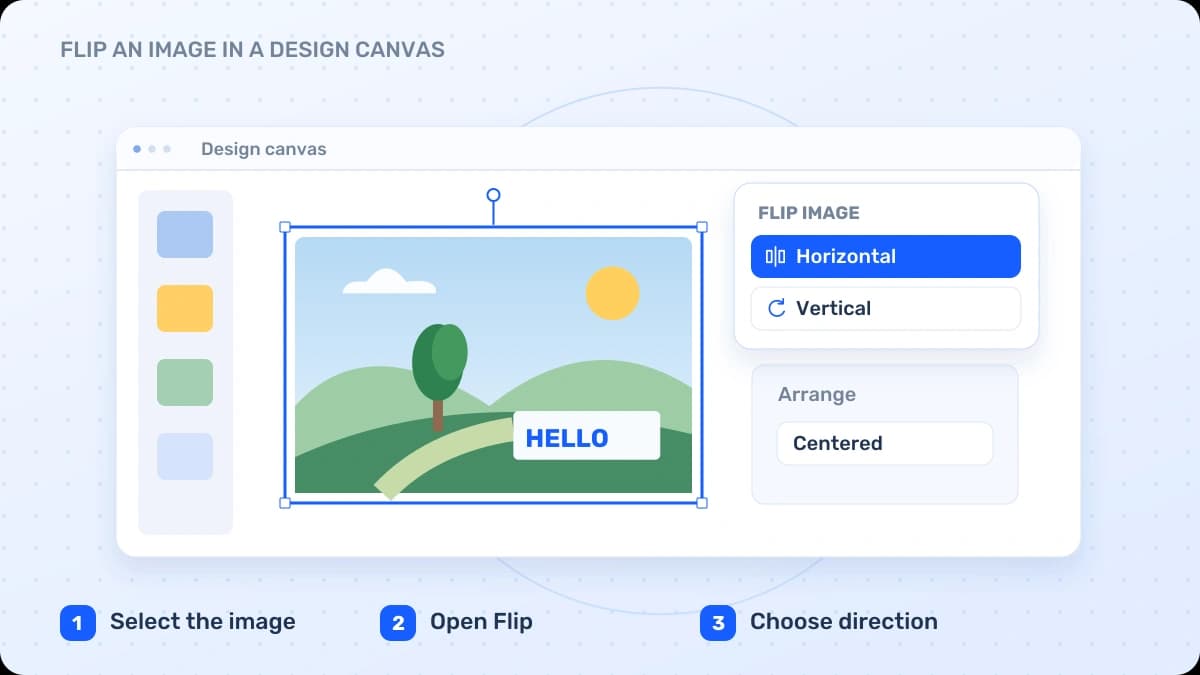
Open your Canva design or create a new design in the size you need. Upload a photo from your device using the Uploads area, then place it on the page. If you are editing an existing design, select the photo that needs to change. Canva's current help documentation says the Flip action is on the toolbar after a supported element is selected.
Step 1: Select the photo, not the entire page
Click directly on the picture. You should see selection handles around the item. If you click a text box, locked element, empty frame, or background area instead, the available options may be different. Work with the exact photograph you want to change, especially when your layout contains several overlapping images.
Step 2: Open the Flip control
Choose Flip from the relevant editing toolbar. Select Flip horizontal to mirror from left to right or Flip vertical to mirror from top to bottom. Canva applies the transformation to the selected supported object. Check the result immediately; a flipped portrait may look appealing even when a logo or writing in the scene becomes incorrect.
Step 3: Export the finished design
When the placement looks right, continue adjusting spacing, cropping, and the surrounding design. Use Canva's download or sharing options to export the project in a supported format. If you only need a standalone flipped photo rather than an entire Canva page, ensure you export the desired image area and do not accidentally include unrelated background elements.
How to Mirror an Image in Canva on Mobile
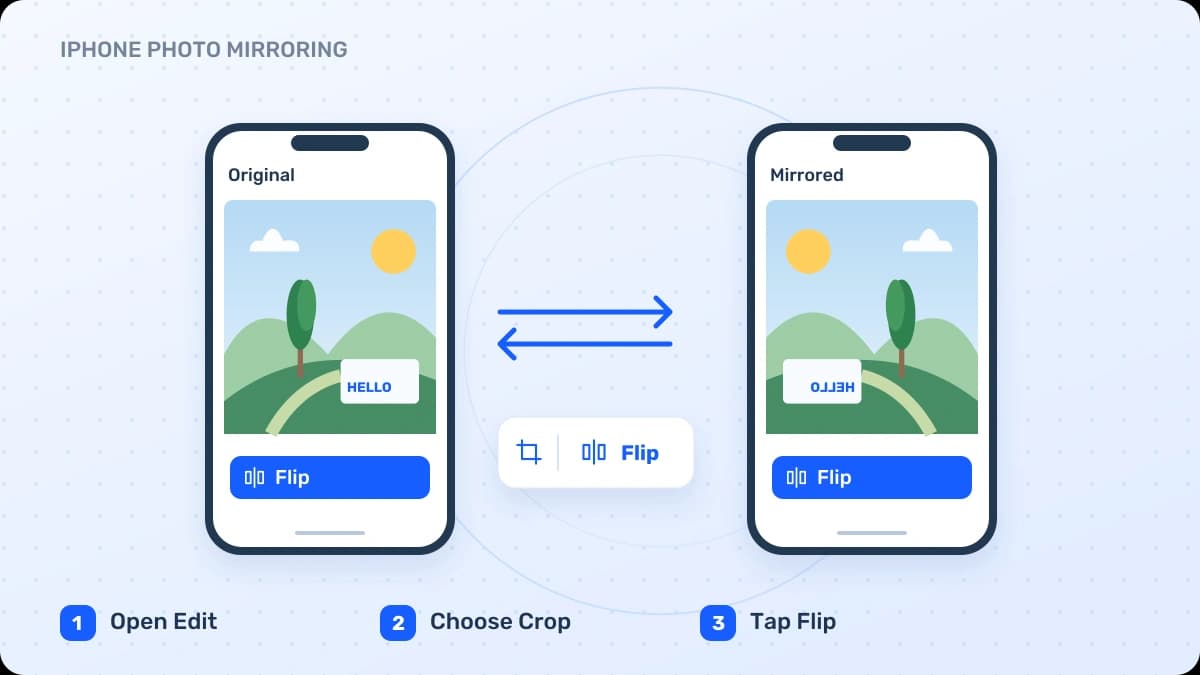
The Canva mobile editor uses a smaller, rearranged toolbar, but the basic technique is similar. Open your project, tap the photograph, and find its available editing controls. Look for Flip, then select the horizontal or vertical direction. Depending on the app version, you may need to scroll the contextual toolbar to reveal the command. Avoid assuming a fixed button position from an older tutorial screenshot.
If you want to reverse a photo for use in several apps, the SocialCropKIT mirror image tool is another route: flip the source image in your mobile browser, save the file, then upload that edited version to Canva. This separates the photo correction from your final layout and can make it easier to reuse the mirrored file elsewhere.
Canva Horizontal Flip vs Vertical Flip
A horizontal flip reflects the photo across an imaginary vertical line. A subject originally on the right moves to the left, and a person looking toward the right edge will face the left edge instead. Use it for balancing a composition, facing a product toward a call to action, or developing a mirror-themed graphic.
A vertical flip reflects across a horizontal line. The top appears at the bottom and vice versa. It can work well with geometric patterns, landscapes intended to resemble water reflections, and experimental art. But it does not merely turn the image sideways. A 90-degree rotation changes where the top of the image points; neither horizontal nor vertical mirroring is a substitute for rotating the canvas.
Does flipping affect image size?
A basic mirror transform changes pixel placement, not the intended image width and height. However, Canva may also crop a photo to fit an existing frame or resize the overall design when you export. If exact dimensions matter for a banner, product thumbnail, or template, inspect the final output settings instead of assuming the flip changed nothing else.
Create a Mirror Reflection Effect in Canva
Flipping one picture is not the same as creating a reflection collage. For a side-by-side mirrored composition, place the photo on the page and make a duplicate. Keep one copy in its normal orientation and flip the other copy horizontally. Position them so their inner edges meet along a vertical centerline. A repeated shape or continuous background can create a satisfying symmetrical effect.
Align the two copies cleanly
Use Canva's alignment guides to keep the two images level. If the halves have different sizes, the seam can look uneven. Choose a subject that suits repetition: architecture, water, abstract patterns, or fashion portraits with simple backgrounds often work better than densely labeled products. Crop both copies consistently if the edges do not match.
How to make a top-to-bottom reflection
Duplicate the photo and place the second copy underneath the first. Apply a vertical flip to the lower image. This can suggest a reflection on a shiny floor or water surface. A more realistic result may also require opacity, blur, or a gradient effect. The flip command alone creates the geometry; it does not simulate ripples, lighting, or a physically accurate mirror.
Why Is the Flip Option Missing in Canva?
The most common reason is selecting the wrong object. Canva's help distinguishes between items that can be flipped and items that cannot. Some text, frames, grouped items, or other element types have restrictions. Click an individual supported photo or graphic rather than the page or a multi-item group. If the object is locked, unlock it when you have permission to do so. If the layout is complicated, temporarily move the image onto a blank page to test the command.
Also confirm you are in the Canva design editor rather than a document view that exposes fewer transformation commands. Product updates change tool placement over time, so the official help article is the best reference when a menu does not match an older screenshot.
How to Keep Text Readable When Mirroring a Canva Picture
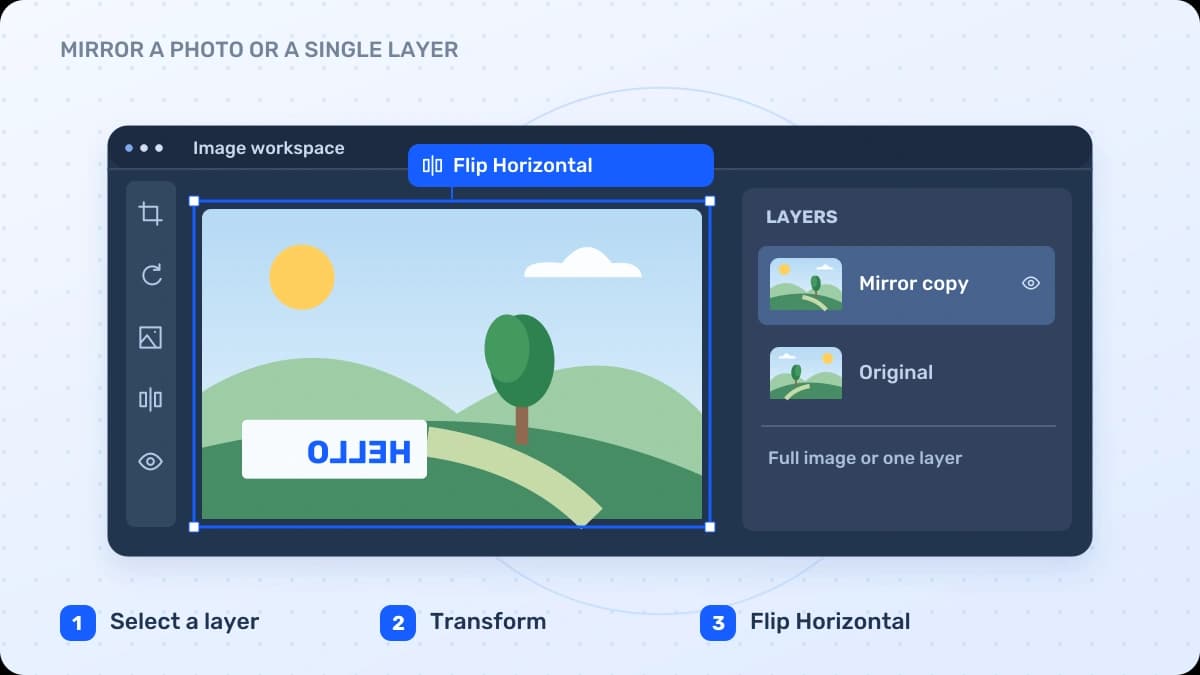
If text is embedded in a photograph or exported graphic, the letters are pixels. A horizontal flip reverses them along with the photo. It does not automatically know which marks are words. For a design with a separate editable text box, flip the photo while keeping the text layer unchanged. For an image containing a baked-in label, you may need to replace the lettering manually after the flip.
This distinction is important for packaging, posters, business logos, storefront photos, and instructional screenshots. A beautiful composition is not useful if the product name reads backwards. Inspect all readable details before publishing your final design.
Canva or a Dedicated Mirror Image Tool?
Choose Canva when you need a complete social post, presentation, advertisement, or collage with multiple editable elements. Choose a simple mirror editor when your task is just reversing the orientation of a source file. On SocialCropKIT, the workflow is to upload, flip, preview, and download; you can then reuse the file in Canva if necessary. No AI generation is needed for a standard left-right reflection.
For more advanced layer-based controls, read our Photoshop image mirroring tutorial. If you're preparing content for a social platform, the Instagram photo mirroring guide covers composition and export checks.
Frequently Asked Questions
How do I create a symmetrical photo in Canva?
Duplicate an image, flip one copy horizontally, and align the pair along their inner edges. Use consistent sizing to create a clean center seam.