How to Unmirror a Selfie and Fix Reversed Camera Photos
Have you ever taken a selfie that looked perfect in the camera preview, then opened the saved photo and felt that something was off? You may be seeing a difference between a mirrored preview and the saved orientation. The fix is often simple: flip the photo horizontally once. But it helps to understand what the camera actually saved, because flipping an image that is already correct can make signs and logos appear backwards.
 By John D.SocialCropKIT Editorial
Why Do Selfies Look Flipped or Reversed?
Many front-camera previews are designed to feel like a mirror. When you move your right hand, the on-screen image behaves in a familiar reflected way. The saved photograph, however, may follow a different camera setting and display a view closer to what someone standing in front of you would see. Because faces are not perfectly symmetrical, switching between those two orientations can seem surprisingly noticeable.
Mirror preview vs saved picture
The preview is what you see before capture; the final file is the image stored after the shutter. Some phones save the mirrored preview, while others save a non-mirrored orientation unless a mirror preference is enabled. Camera settings, operating-system versions, and individual apps can affect the result. This is not necessarily a malfunction.
Why one orientation feels more familiar
Most people see themselves in household mirrors far more often than in non-reversed photographs. A mirrored selfie may therefore look more familiar, while the opposite orientation can feel unusual. That does not mean either image is objectively more attractive. For accuracy, rely on a known directional clue instead of judging solely by facial appearance.
How to Unmirror a Selfie Online
A full-photo horizontal flip reverses the saved image left to right. It is the usual action when you want to undo an unintended mirror orientation. You can use SocialCropKIT's free mirror image tool in a mobile or desktop browser to make the change and download a new copy.
Step 1: Upload the saved selfie
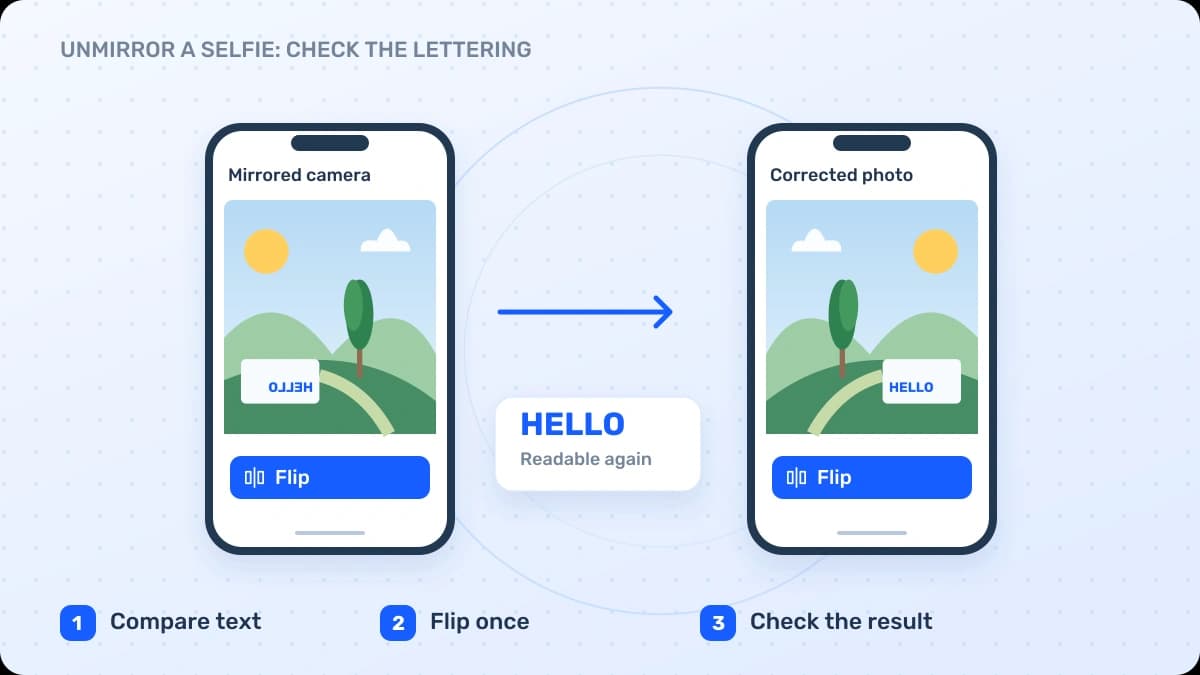
Choose the original saved photo, not a heavily compressed screenshot where possible. Inspect the scene for text, logos, a ring, or another asymmetrical detail. If nothing in the picture is directional, take a quick test selfie with a sheet of paper displaying a short word to understand your phone's current behavior.
Step 2: Flip horizontally once
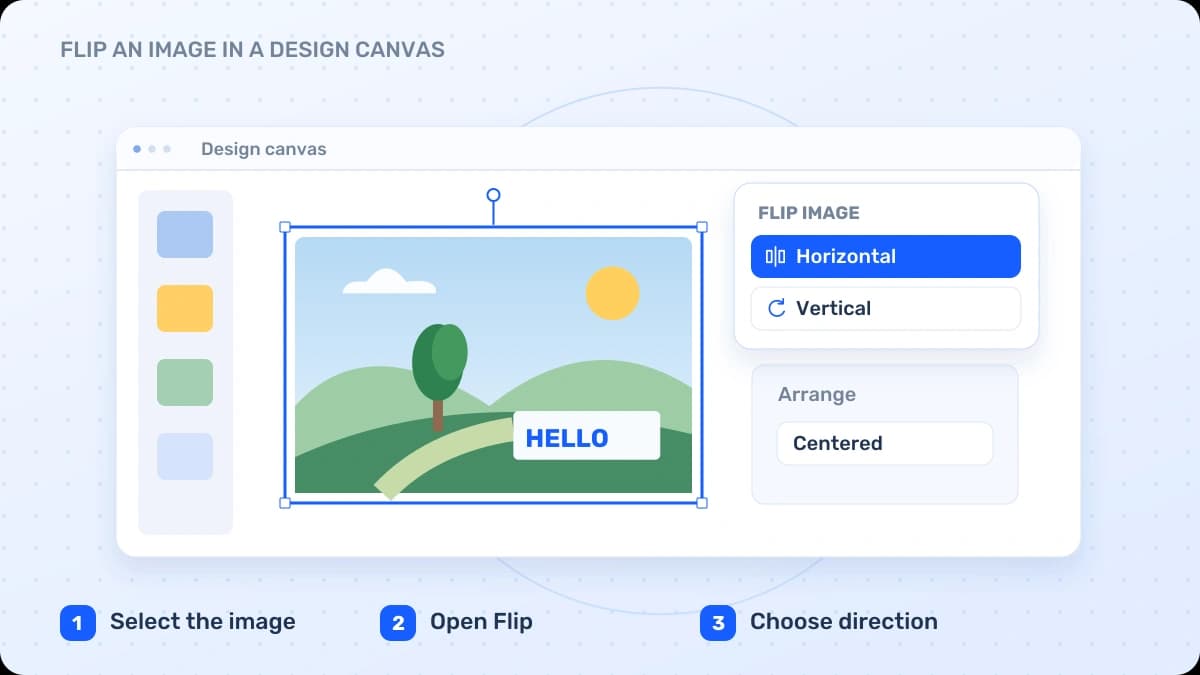
Select Flip Horizontal. Avoid Flip Vertical, which reverses top and bottom, and avoid a 180-degree rotation, which turns the entire scene upside down. A horizontal mirror swaps the left side with the right. It also reverses everything in the background, which is why a visible sign is useful for judging the result.
Step 3: Check writing and download
If a word that looked backwards now reads normally, the mirrored orientation has been corrected for that reference. If the writing was readable before and backwards afterward, the original may have been correct. Compare both versions, choose the one appropriate for your purpose, and download the result. Save it as a new file so the source remains available.
How to Stop iPhone Selfies from Flipping
Apple includes a preference named Mirror Front Camera. Open Settings > Camera and turn it on if you want the saved selfie to match the mirror-like front-camera preview. If you want the other orientation, turn it off. Take a test photo with visible writing to confirm the behavior rather than relying on memory of how the preview looked.
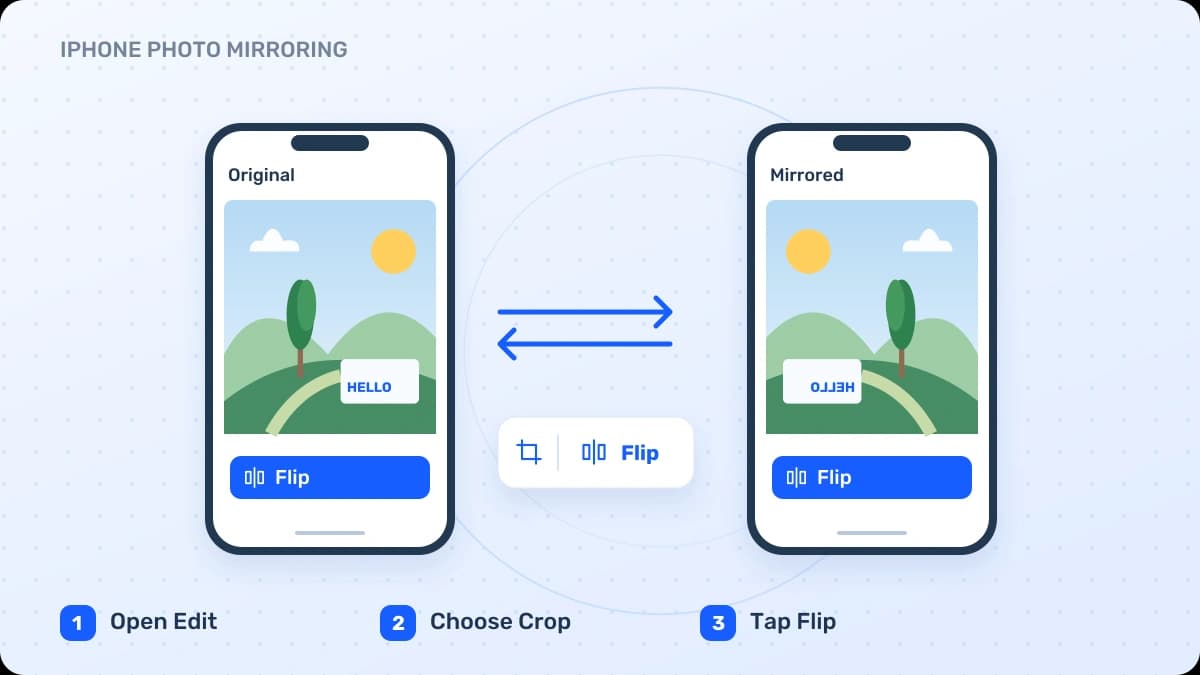
That setting affects future pictures. To fix an older photo, use the Photos app: open the image, tap Edit, select Crop, and tap Flip. Choose Done when the direction looks right. Read the full iPhone mirror photo guide for a walkthrough of the editing controls and file export options.
How to Fix Reversed Selfies on Android
Android phone manufacturers use different camera apps and naming conventions. Search the front-camera settings for Mirror selfies, Save as previewed, or a similar preference. If your phone offers the option, toggle it and take a new test photo. Remember that changing a setting usually will not edit older files in your library.
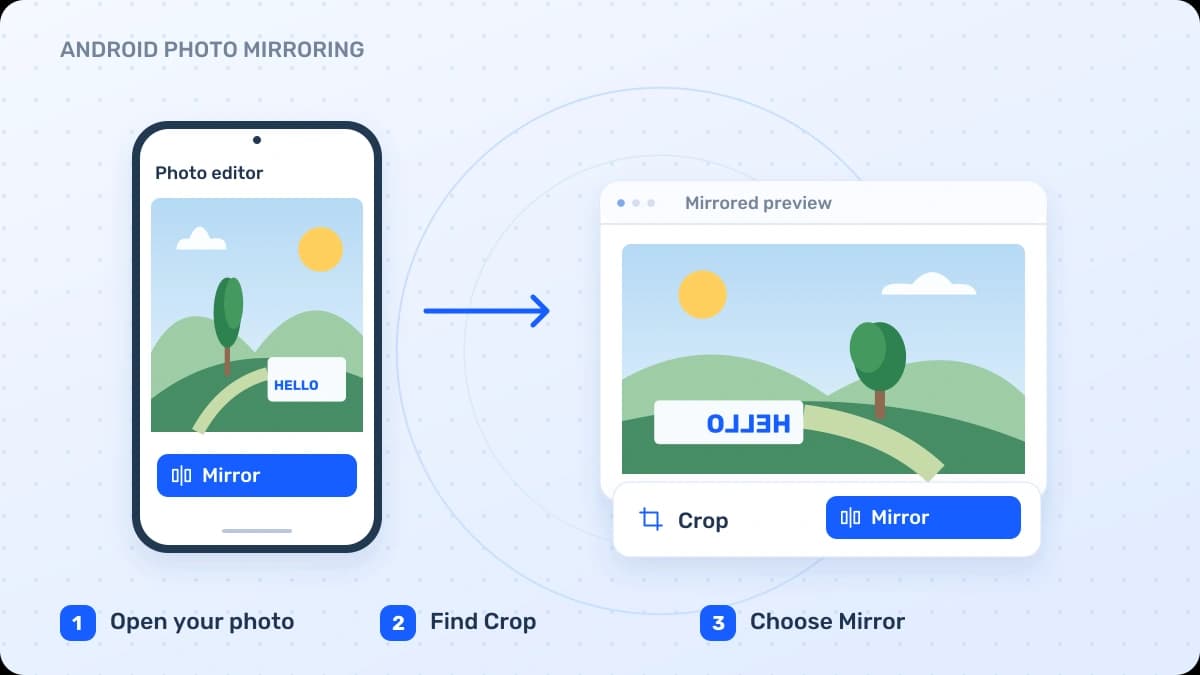
For an existing image, Android Google Photos includes a Mirror action in its photo-editing tools. Samsung Gallery also provides a Flip control. Open the saved selfie, locate the horizontal mirror option, and save a copy after checking the text in the background. See our Android picture flipping tutorial for more details.
Why Does Text Appear Backwards in a Selfie?
When you look into an actual mirror, written letters appear reversed left to right. A digital horizontal mirror produces the same effect across the whole photograph. If your T-shirt reads “TEAM” in real life, a reflected version can make the letters look reversed. A mirror tool does not identify words and selectively correct them; it moves the lettering with every other pixel.
Can you flip a selfie but leave the text readable?
Not through a basic whole-image flip. If the image contains an important logo or sign, you may need a layered photo editor. One approach is to mirror the photograph while recreating the original text as a separate overlay. Another is to mask or preserve a specific region, then adjust the surrounding image. Such edits require careful handling because the final result may no longer represent the original scene faithfully.
How to Know Which Selfie Orientation Is Correct
Ask what the photo is for. A personal portrait can be shown in either orientation if you prefer the composition. For product demos, identification materials, instructional photos, and other factual uses, preserve real-world details. A driver-side vehicle control, shop sign, or medical diagram should not be reversed just to improve aesthetics.
Compare a known object in the image with its position in reality. If the sign is readable and the logo is correct, you have a strong clue. If the photo contains no such cues, the orientation that best serves the intended use may be acceptable. A familiar-looking face alone is not proof that a photo was originally mirrored.
Common Mistakes When Unmirroring Photos
Using vertical flip: It makes the photo top-to-bottom reversed, not corrected left-to-right. Flipping twice: Two horizontal flips return to the starting orientation. Editing only the preview: Camera settings may alter how future photos save, not existing pictures. Ignoring background text: A portrait may look good while every sign becomes unreadable.
Overwriting the only original: Always keep a source copy if the image matters. Repeated compression: Repeated JPG exports can reduce quality even when a mirror action does not. Assuming all selfie apps behave alike: Messaging, social, and default camera apps may process previews differently.
Which Version Should You Share?
For a casual selfie, choose a version you like after checking the background for unintended changes. If the photo will support a factual claim, preserve the real orientation. If you are editing an image for a social post, you can flip it to guide attention, but not to fabricate the position of an object or imply something that did not happen. Clear visual communication is more valuable than a perfect mirror effect.
Frequently Asked Questions
Why does my selfie flip after I take it?
The camera preview and saved file may use different mirror preferences. Check your front-camera settings and test with visible writing.
Does unmirroring change my face?
It changes the horizontal orientation of your face in the picture, not your actual facial features. The result may feel unfamiliar because people often see themselves in mirrors.