How to Mirror a Photo on iPhone: Flip Pictures Easily
Want to make someone in a picture face the opposite direction, fix a reversed selfie, or correct backwards lettering? You can mirror a photo on an iPhone without downloading an extra app. Apple's Photos app includes a horizontal flip control, and a browser-based mirror tool offers another way to create a separate downloadable copy. The important part is choosing the right transformation: flip and rotate are not interchangeable.
 By John D.SocialCropKIT Editorial
How to Flip a Photo on iPhone Using the Photos App
The built-in method is usually the quickest. It keeps your edits inside the photo library and makes it easy to reconsider the result. Apple's current iPhone Photos documentation places Flip among the Crop editing tools.
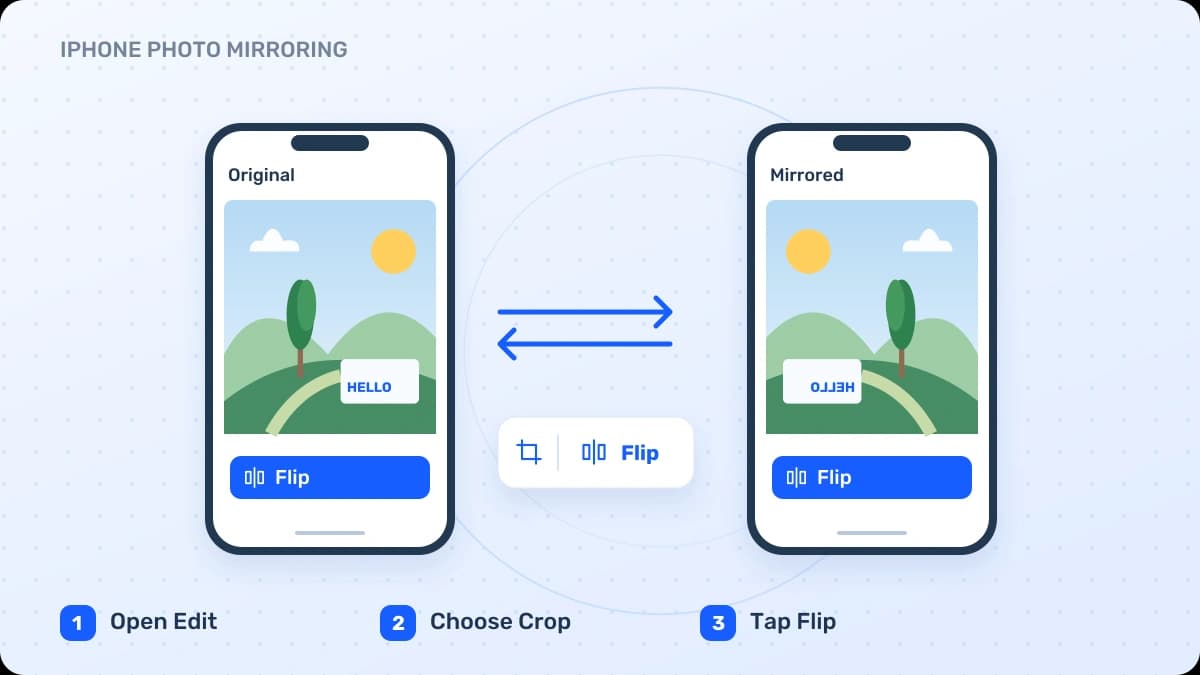
Step 1: Open the picture in Photos
Launch Photos and select the image you want to reverse. Look for a visual clue that will make the result easy to judge: a written sign, a printed logo, a hand holding an object, or a building visible in the background. Photos of nearly symmetrical objects can be hard to assess without a reference.
Step 2: Choose Edit and Crop
Tap Edit, then open Crop. The Crop workspace contains tools for straightening, rotating, and changing image orientation. Locate the Flip icon rather than the Rotate icon. The controls may shift slightly as Apple updates iOS, but the action remains a horizontal reflection.
Step 3: Tap Flip and save
Tap Flip once. The left and right sides exchange places across the centerline. Review the result, then tap Done to save. If you do not like it, you can return to Edit and revert the change. If you need the original and flipped files side by side for a project, use a workflow that exports a separate copy rather than relying on a single edited library item.
How to Mirror a Photo on iPhone Online
A browser tool is especially useful when you want a downloaded JPG, PNG, or WebP version for a website, a document, or a design app. Open the free mirror image tool in Safari, choose your photo, and select Flip Horizontal. Review the before-and-after orientation, then download the edited file. On iPhone, the file may be saved through the browser's download workflow rather than automatically replacing the original in Photos.
If you need to flip a picture upside down instead, choose Flip Vertical. This is helpful for experimenting with a reflective layout but is usually not the right fix for a mirrored selfie. For better results, export the image in a suitable format. PNG is useful for transparent graphics and sharp lettering; JPG or WebP may suit everyday photographs.
Why use an online mirror tool instead of Photos?
Photos is ideal for quickly correcting something already in your iPhone library. A separate web editor helps when you want to retain the source file unchanged, control the output format, or move the image into another application. For basic mirroring, neither approach needs AI-generated content. Both start with your original pixels and rearrange their orientation.
Change the iPhone Mirror Front Camera Setting
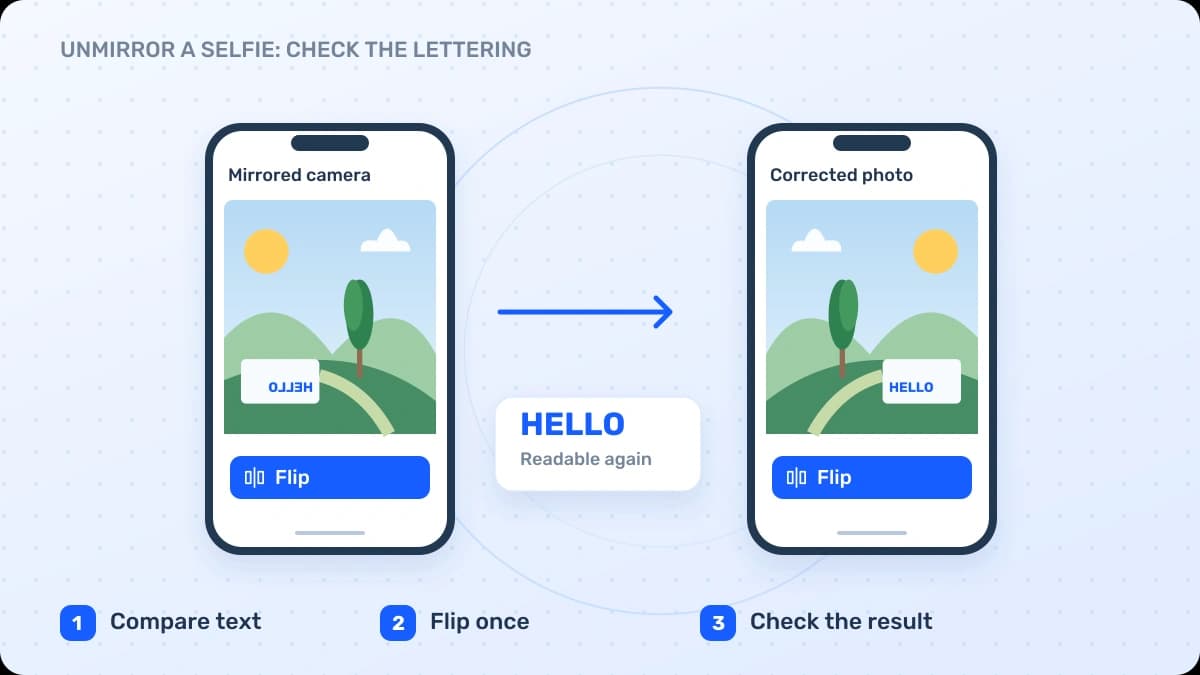
A common question is why a selfie looks different after you press the shutter. The live camera preview can resemble a mirror, while the saved image may use a non-mirrored orientation. Apple provides a camera preference for people who want their saved selfie to match the preview.
Open Settings > Camera and find Mirror Front Camera. Turn it on when you want to preserve the reflected view shown by the front camera. Turn it off when you prefer the other orientation. Test the setting with a photo that includes writing, because text makes the difference obvious. This setting affects future captures; it does not automatically rewrite every selfie you have already saved.
Does the mirror camera setting change facial features?
It does not alter your facial anatomy. It changes which side of the photograph appears on the left or right. Because you see yourself in mirrors frequently, a non-mirrored photo may feel surprising even though it represents the same face. Neither version is inherently more flattering or more accurate for every purpose. For documents or product photos, use orientation cues that matter in the real world.
Horizontal Flip vs Vertical Flip on iPhone
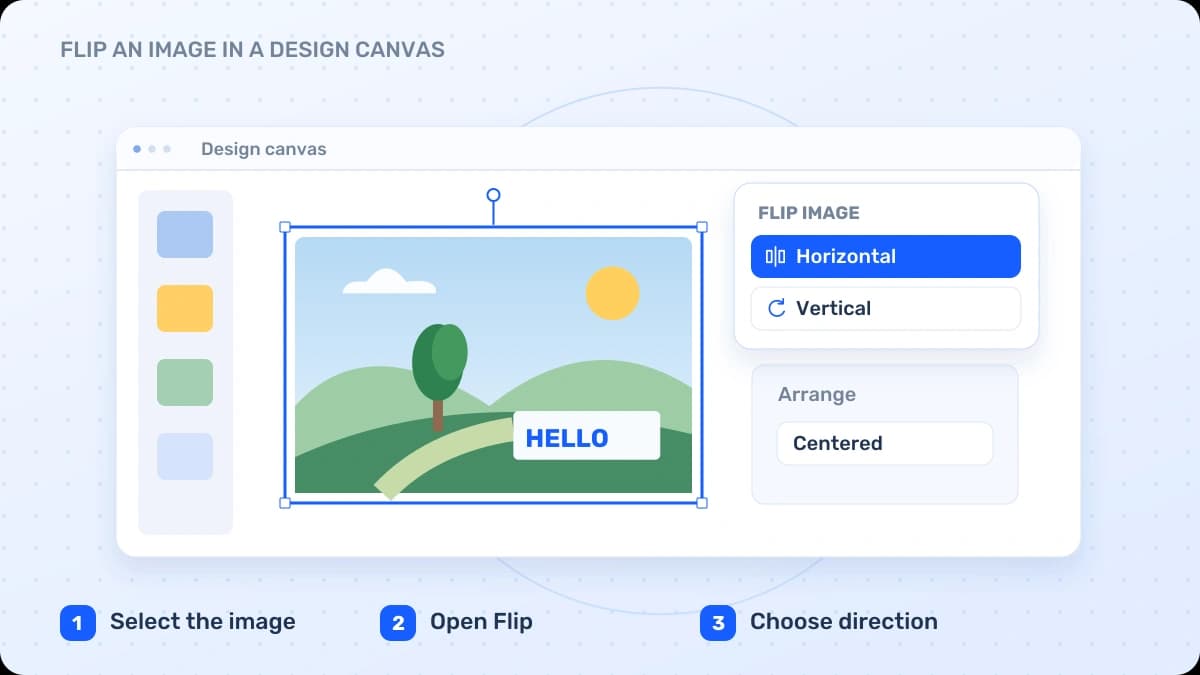
The difference is easy to remember. A horizontal flip swaps the left side with the right side. It is commonly used to reverse a selfie or reposition a subject within a design. A vertical flip swaps the top with the bottom. It is often used for upside-down effects or reflection graphics. A 180-degree rotation turns the photo completely around, changing both axes at once. If you only want to reverse left and right, rotating is the wrong command.
What happens to text and logos?
Every element inside a flattened image is flipped together. If you reverse a picture of a storefront, the shop name will read backward. If you flip a photo of a branded product, the label will also reverse. This matters for advertising, instructional images, and merchandise. For a natural-looking portrait, inspect the entire background before deciding which version to share.
Common iPhone Mirror Image Problems
The photo looks upside down. You probably selected rotation or a vertical transformation. Undo it and try a horizontal flip. The saved version looks unchanged. Compare a directional reference; a centered portrait can appear similar in both directions. The image looks softer. A flip itself does not create new blur, but repeatedly exporting compressed images may reduce quality. Work from the original and minimize unnecessary re-encoding.
The edited picture is missing from Photos. A browser download can go to Files or the browser's download list. Open that location and save or share it back to Photos if needed. The logo is reversed. This is expected for a full-photo mirror. To keep the branding readable, mirror only the photographic area in a layered editor, or place the original logo over the finished image.
When Should You Mirror an iPhone Picture?
Try a horizontal flip when a portrait faces away from your article text, when a group photo's composition feels unbalanced, or when a selfie was saved in a direction you did not intend. Do not flip documentary photographs in ways that misrepresent a real event. Reversing road signs, product markings, medical images, or location-specific details can change their meaning. A good photo edit serves the purpose of the picture without misleading viewers.
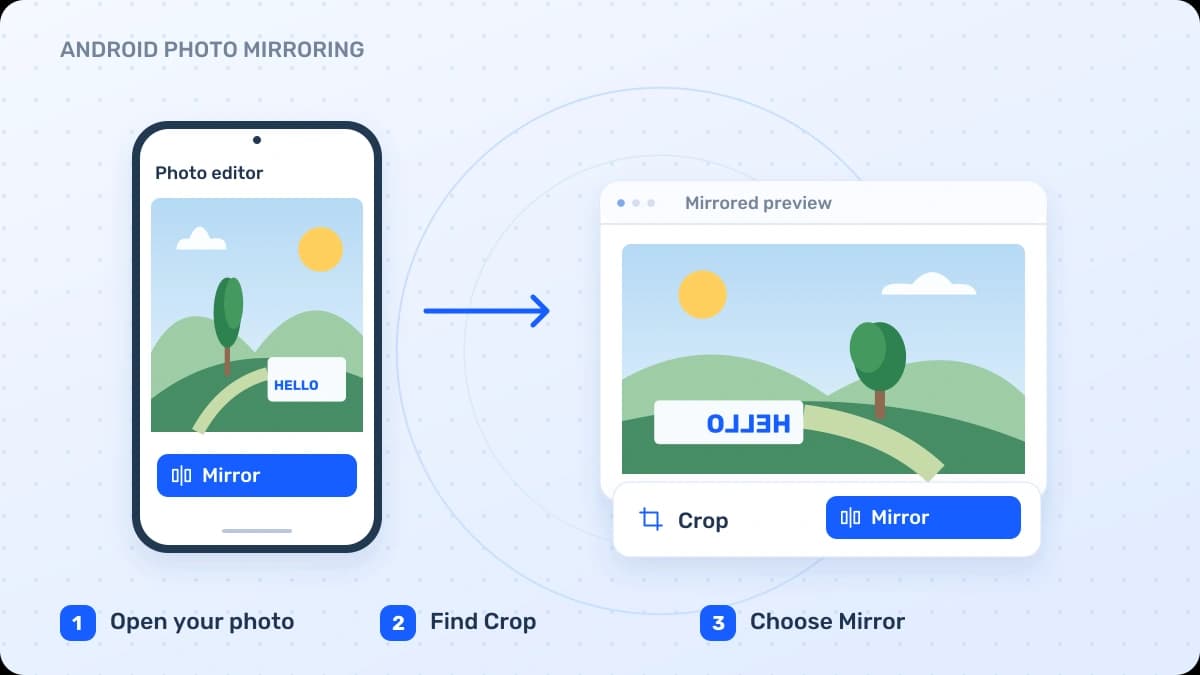
The same principles apply to Android. Our Android photo flipping tutorial covers Google Photos and Samsung Gallery, while the selfie unmirroring guide explains camera previews and backwards text in more depth.
Frequently Asked Questions
Can I undo a mirrored photo in iPhone Photos?
Usually, yes. Open the edited picture, use Edit, and select the available revert option for the original. If you exported a separate flat image, keep the source photo for an easy recovery.