
Photo mirroring & flipping guides
Phones & selfies
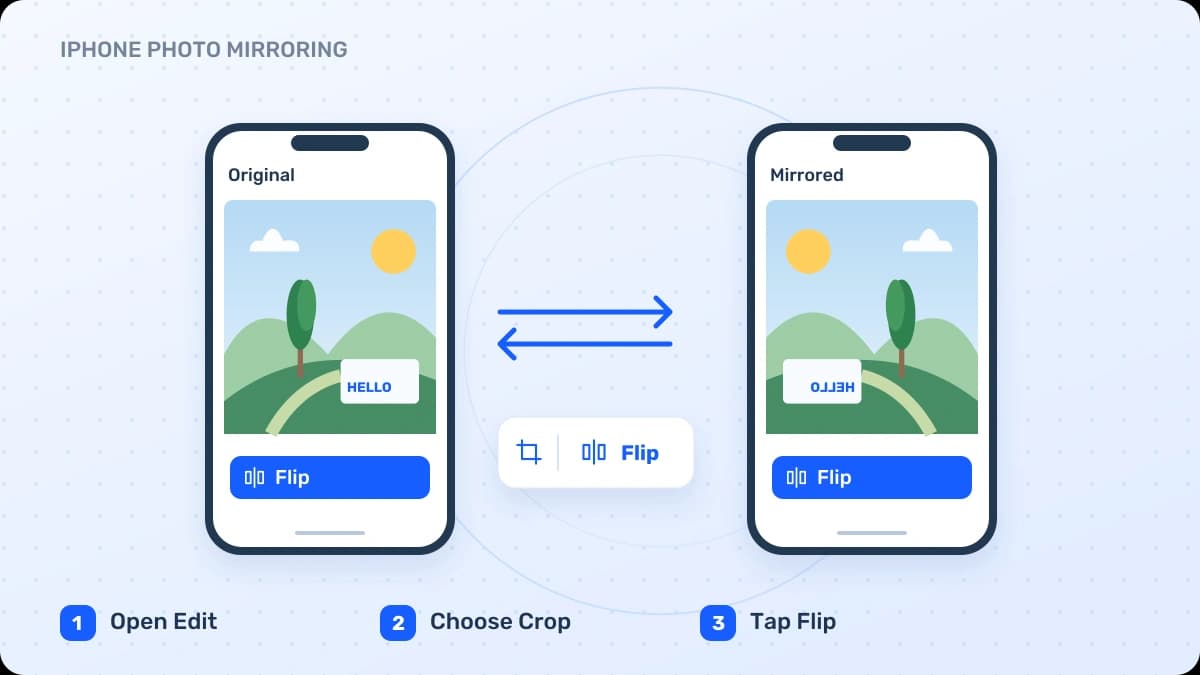
How to Mirror a Photo on iPhone: Flip Pictures Easily
Want to make someone in a picture face the opposite direction, fix a reversed selfie, or correct backwards lettering? You can mirror a photo on an iPhone without downloading an extra app. Apple's Photos app includes a horizontal flip control, and a browser-based mirror tool offers another way to create a separate downloadable copy. The important part is choosing the right transformation: flip and rotate are not interchangeable.
Read guide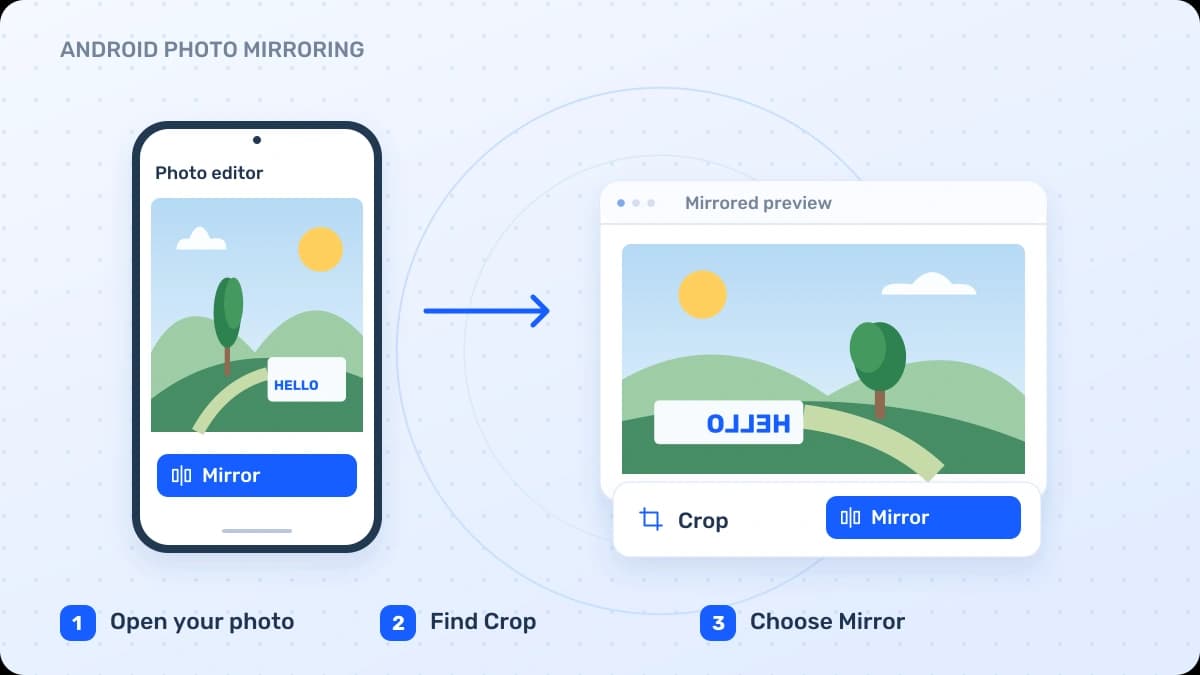
How to Flip a Photo on Android Using Google Photos
A picture can have the right colors and lighting but still face the wrong direction. Maybe a selfie looks reversed, a person is looking off the edge of a social post, or a label appears backwards. Android phones offer several ways to flip a photo horizontally, and many include a built-in editor. Google Photos has a mirror control on Android, while Samsung Galaxy devices offer their own Gallery editing tools.
Read guide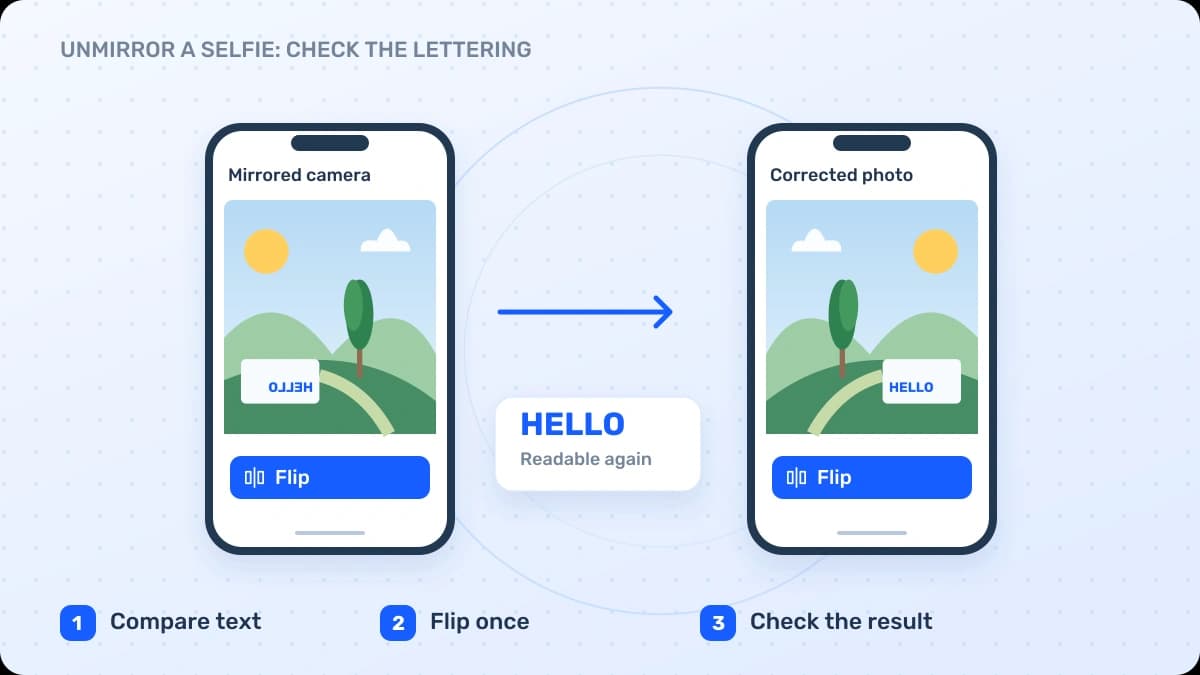
How to Unmirror a Selfie and Fix Reversed Camera Photos
Have you ever taken a selfie that looked perfect in the camera preview, then opened the saved photo and felt that something was off? You may be seeing a difference between a mirrored preview and the saved orientation. The fix is often simple: flip the photo horizontally once. But it helps to understand what the camera actually saved, because flipping an image that is already correct can make signs and logos appear backwards.
Read guideDesign & social
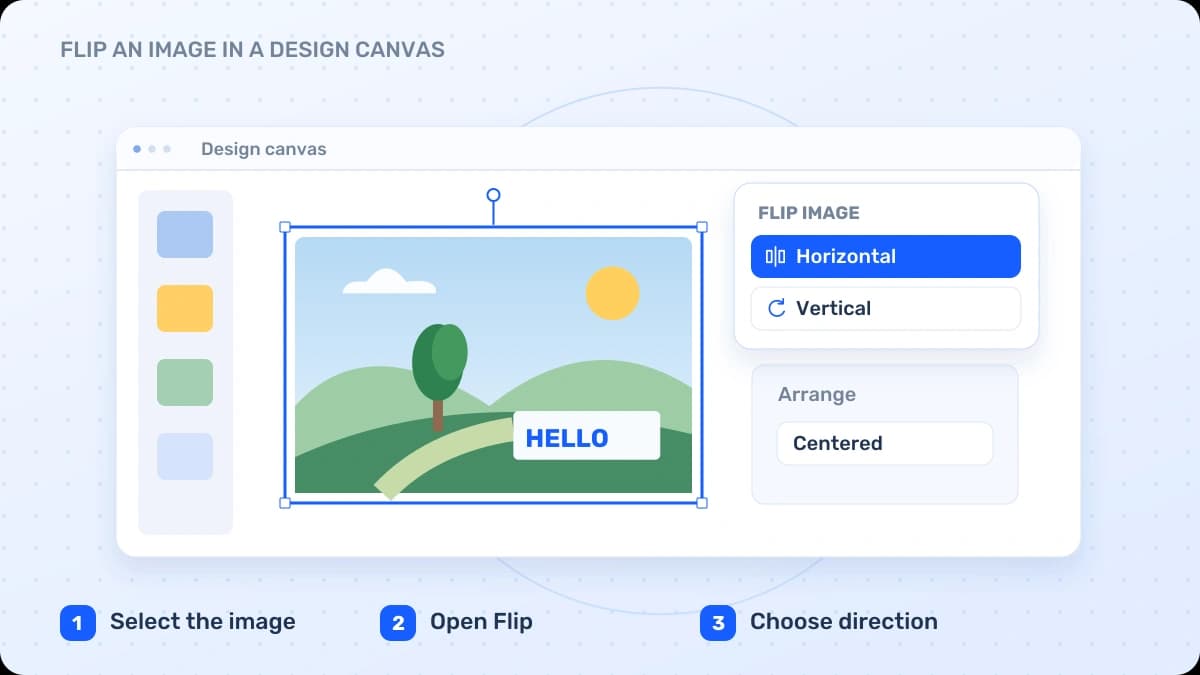
How to Flip an Image in Canva: Horizontal and Vertical Mirroring
Sometimes the smallest design adjustment makes the biggest difference. A product may face the wrong direction, a portrait may pull attention away from a headline, or you may want a symmetrical mirror effect for a social-media graphic. Canva lets you flip supported images and design elements horizontally or vertically, and the operation is different from rotation. Here is how to choose the correct control and avoid the common mistakes that leave text or logos backwards.
Read guide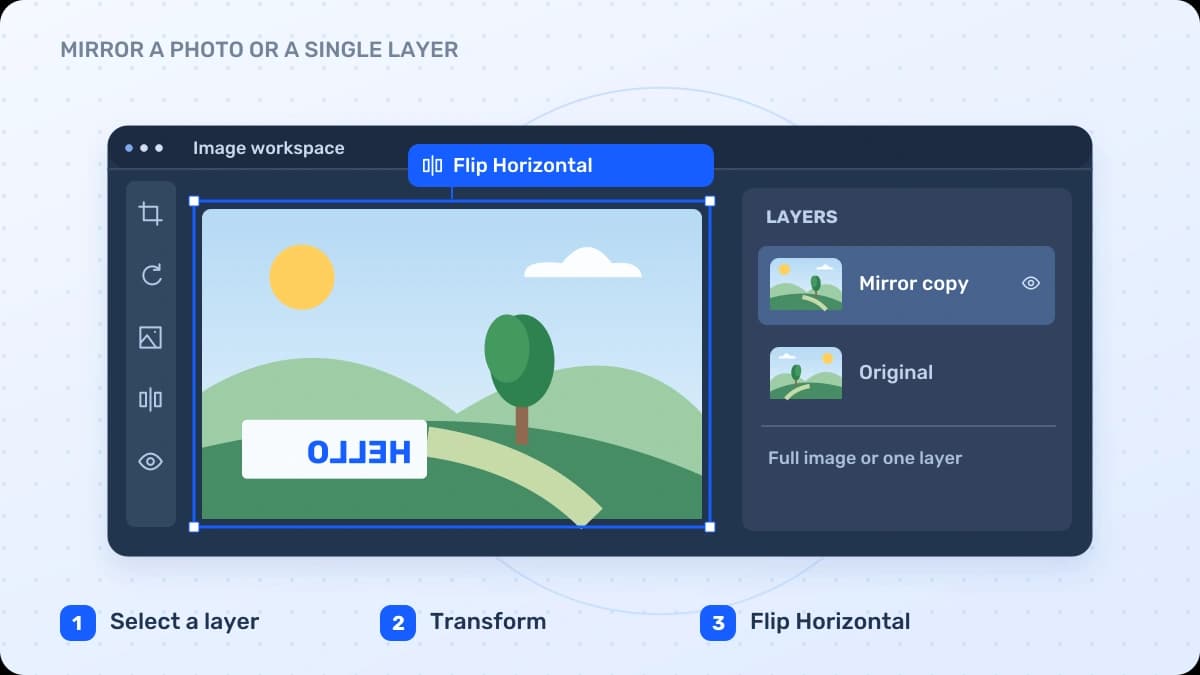
How to Mirror an Image in Photoshop: Flip Photos and Layers
Photoshop offers more than one way to reverse a picture, and choosing the right method matters. If you want every visible element to face the opposite direction, flip the entire canvas. If you need to mirror a logo, object, or portrait layer while keeping the rest of the design intact, transform only that layer. This guide covers both techniques, the difference between flipping and rotating, and how to preserve a useful original file.
Read guide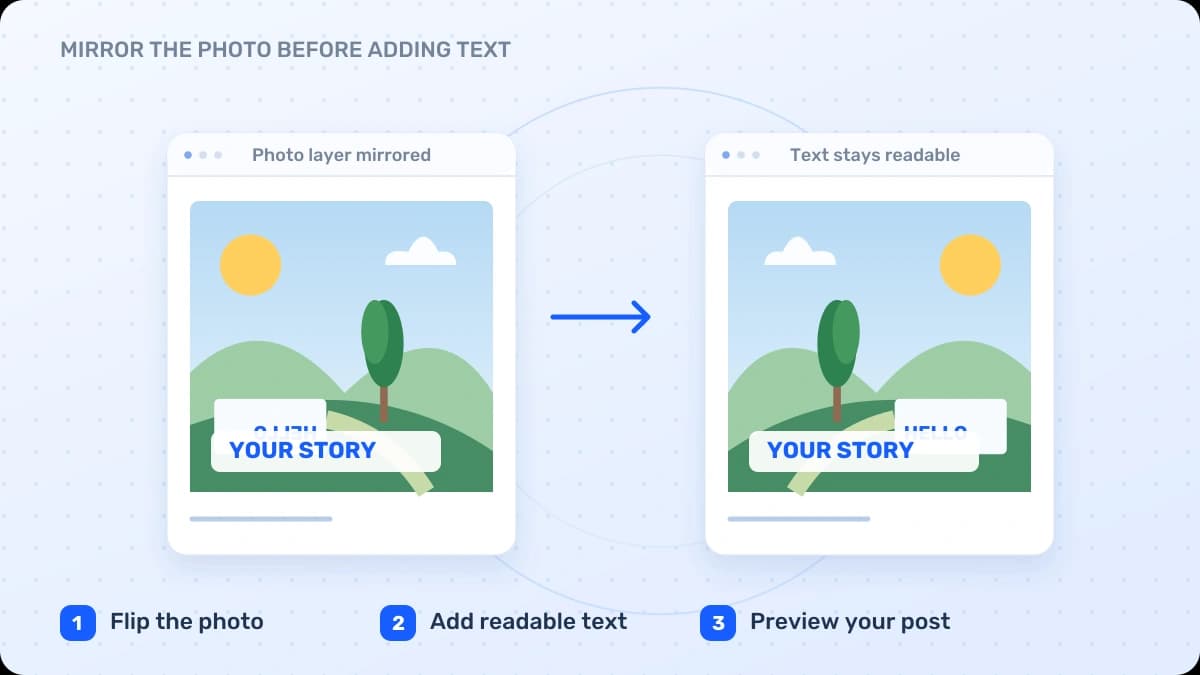
How to Mirror a Photo for Instagram Posts and Stories
A horizontal mirror can make a familiar picture feel fresh. It can turn a subject toward a caption, create a balanced carousel cover, or help a portrait fit a design without awkward cropping. If you want to flip a picture before posting it on Instagram, you do not have to rely on a particular in-app effect. Prepare the image in a photo editor, save the correct orientation, and then upload it to your post or Story.
Read guideDocuments & printing
How to Flip an Image in Google Docs: Mirror Pictures Step by Step
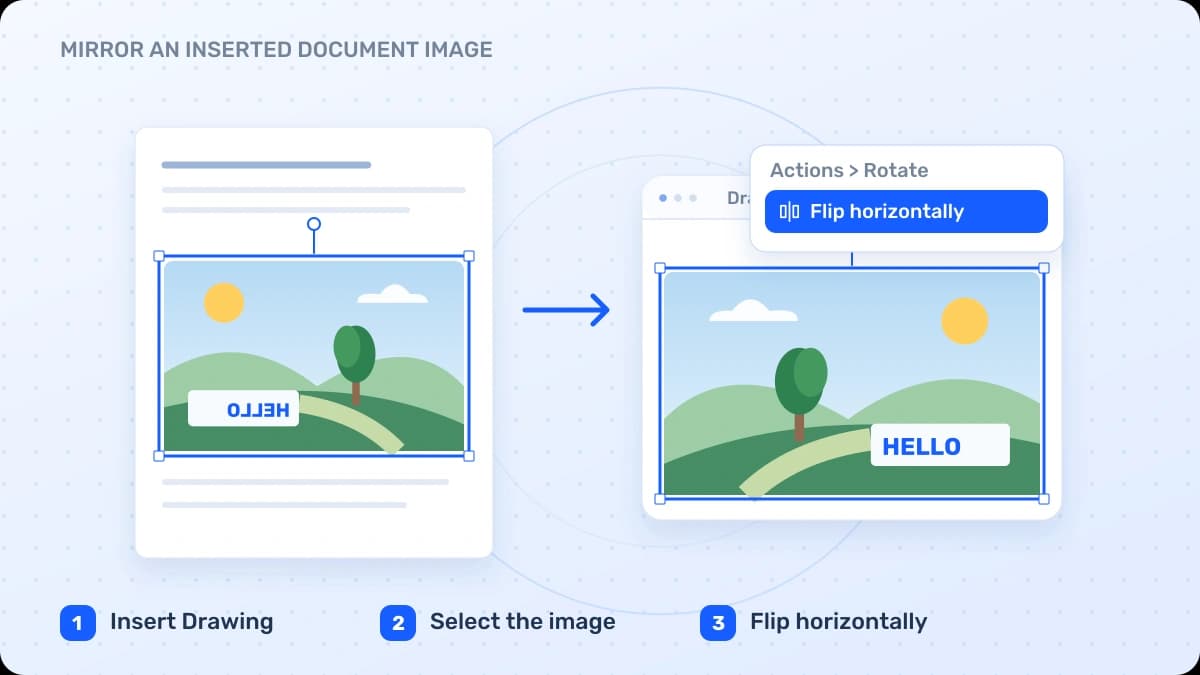
Google Docs makes it easy to insert a photo into a report, worksheet, or presentation outline, but the ordinary image toolbar does not provide the same direct flip command found in full photo editors. The practical workaround is to use Drawing, where supported images can be transformed, or to mirror the picture before inserting it into the document. Both methods let you fix a backwards image without rebuilding your entire document.
Read guide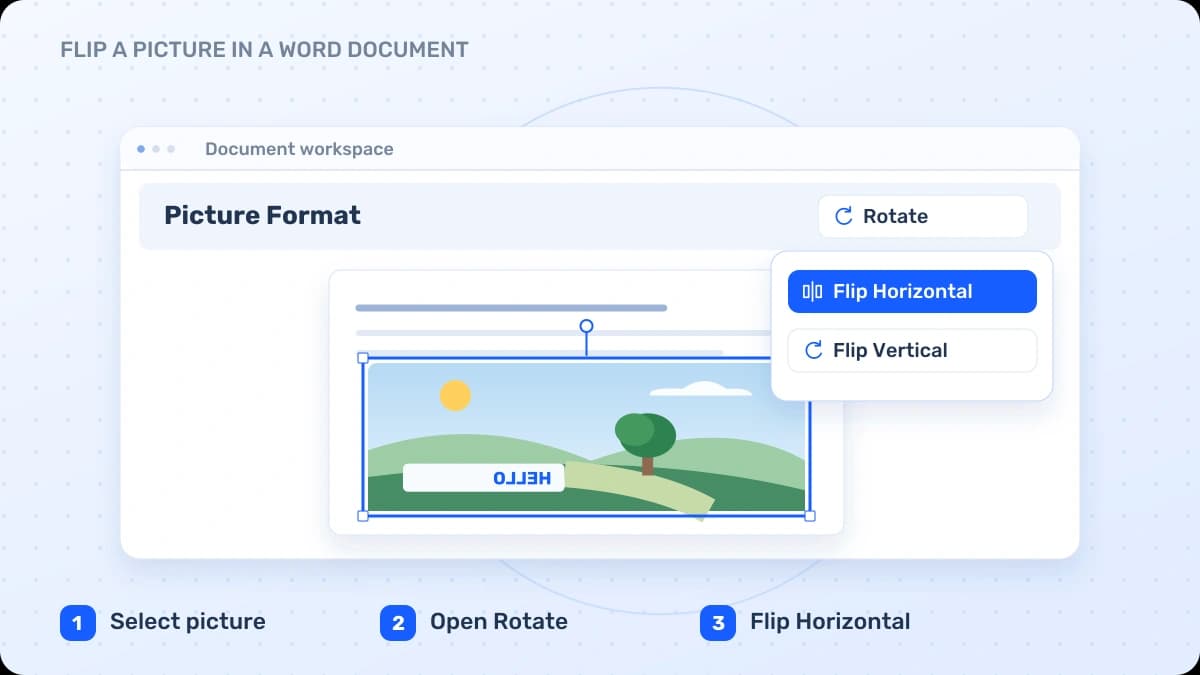
How to Mirror an Image in Word: Reverse Pictures and Text
A picture that looks correct in a photo editor may face the wrong direction after you place it in a document. Perhaps an arrow points away from a paragraph, a portrait looks off-balance, or a printed transfer needs a reversed design. Microsoft Word includes built-in horizontal and vertical flip commands for pictures, so you can make these adjustments without purchasing another editing program. The key is to select the picture itself and use the correct Rotate menu option.
Read guide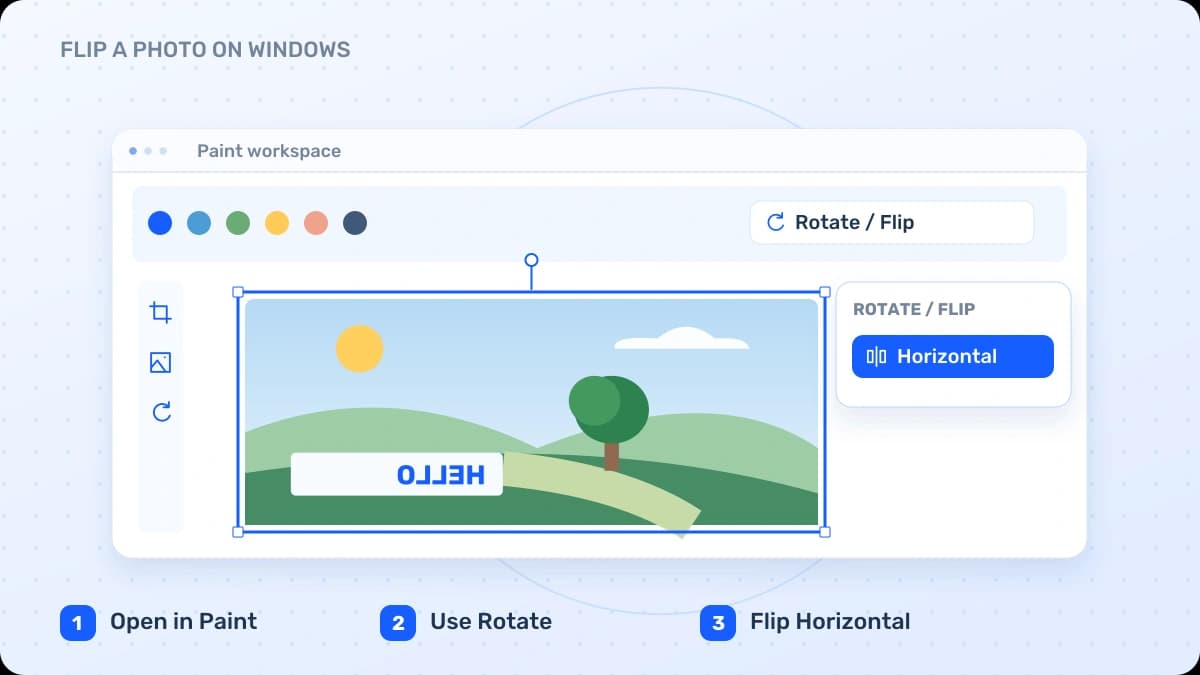
How to Flip an Image on Windows 11 Using Paint and Photos
You do not need an expensive graphics suite to mirror a picture on Windows 11. The operating system includes basic image-editing options, and a lightweight browser tool can help when you want a separate downloadable photo. Whether you need to reverse a selfie, change the direction of an illustration, or prepare a graphic for a document, the same rule applies: choose Flip Horizontal for left-right reversal and Flip Vertical for top-bottom reversal.
Read guide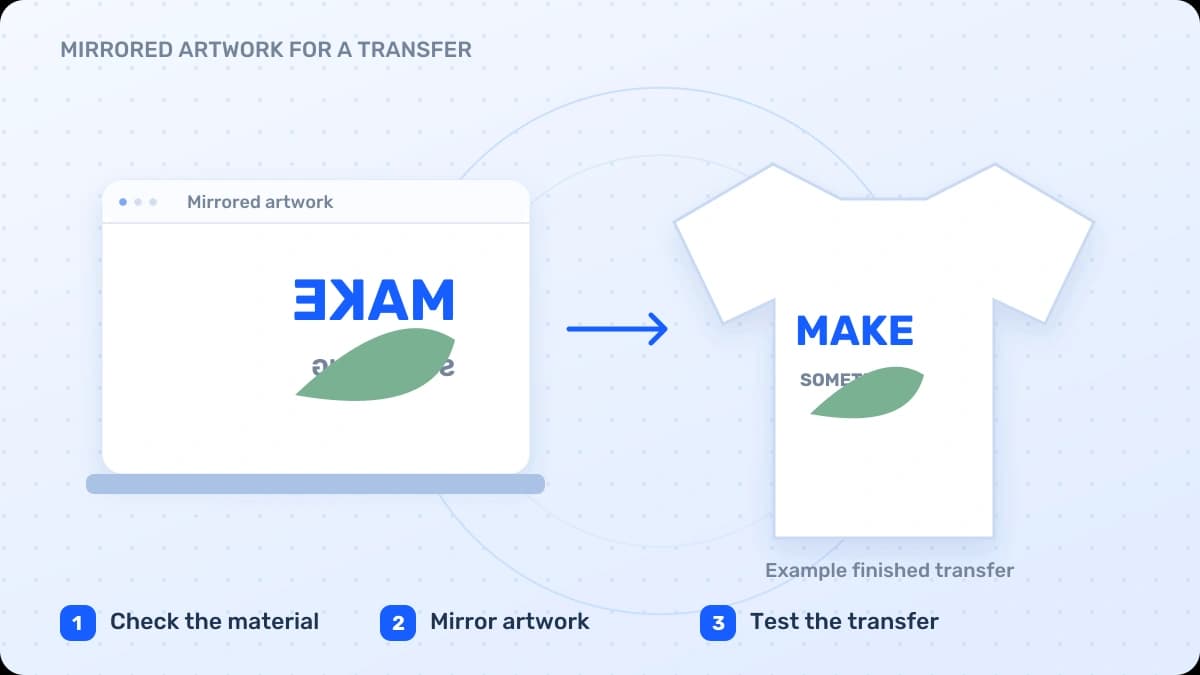
How to Mirror an Image for Printing and T-Shirt Transfers
Mirroring an image for printing is easy; knowing whether you should mirror it is the important part. Some iron-on transfers, heat-transfer materials, and craft workflows require a design to be reversed before it reaches the fabric. Others are designed to be applied face up and must not be mirrored. A wrong choice can produce a finished shirt with backwards writing, so always check your material's instructions before preparing a print file.
Read guide