How to Mirror an Image in Photoshop: Flip Photos and Layers
Photoshop offers more than one way to reverse a picture, and choosing the right method matters. If you want every visible element to face the opposite direction, flip the entire canvas. If you need to mirror a logo, object, or portrait layer while keeping the rest of the design intact, transform only that layer. This guide covers both techniques, the difference between flipping and rotating, and how to preserve a useful original file.
 By John D.SocialCropKIT Editorial
How to Flip an Entire Image in Photoshop
Adobe's current Photoshop desktop documentation places canvas-wide flips under Image > Image Rotation. Despite the menu name, that area includes horizontal and vertical reflection commands. The difference is important: a 90-degree rotation turns the picture, while a horizontal flip creates a mirror version.
Step 1: Open the document and save a working copy
Open the photograph or PSD project. Before changing a multi-layer design, use Save As or another safe versioning workflow to preserve the editable original. A canvas-wide transformation can alter pixel data across the document. Keeping an untouched copy allows you to compare layouts, correct mistakes, and return to a previous version without depending on a long Undo history.
Step 2: Find the canvas flip command
From the top menu, select Image > Image Rotation > Flip Canvas Horizontal. The entire composition is reflected from left to right. Choose Flip Canvas Vertical when you specifically need a top-to-bottom reversal. This command affects the whole image arrangement, including layers, text that has been rasterized, backgrounds, and directional visual details.
Step 3: Review and export
Zoom in on text, packaging, signs, and other information that could become misleading when reversed. Save the editable project first if you will continue working on it. For web sharing, export a suitable image file; for future adjustments, retain the layered PSD. If you only export a flattened photo, later edits to individual components will be more difficult.
How to Flip a Single Layer in Photoshop
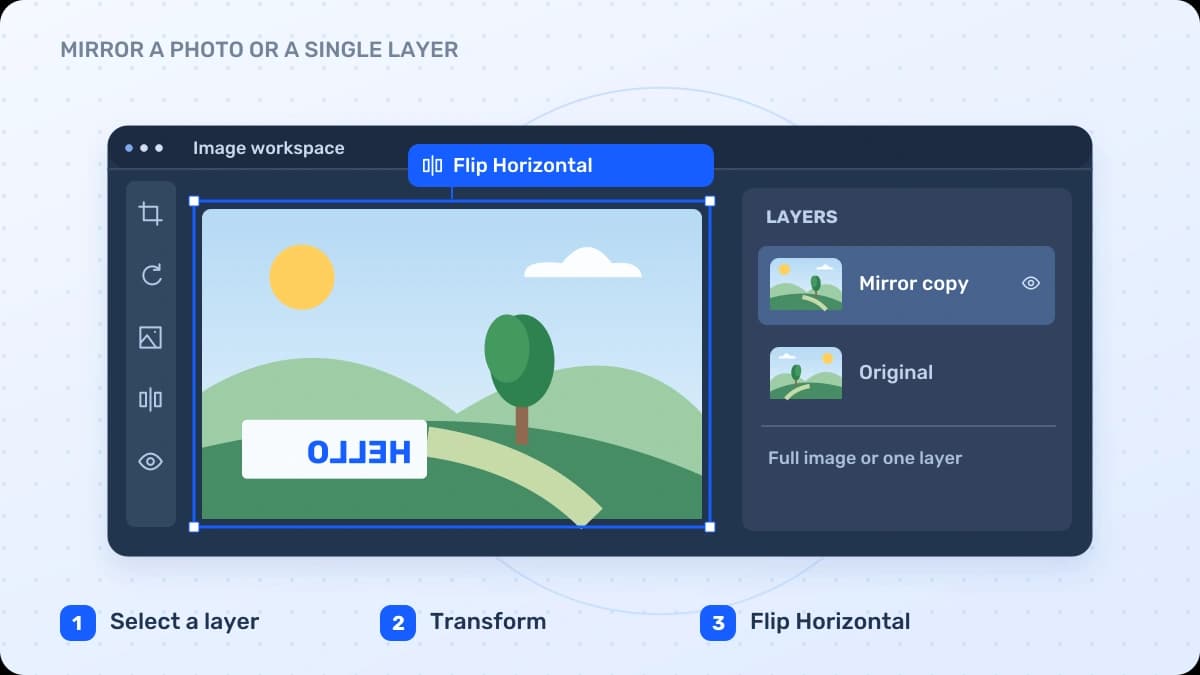
A selective mirror effect needs a different workflow. Select the layer you want to change in the Layers panel. Use Edit > Transform > Flip Horizontal or Flip Vertical, or open Free Transform and use its flip options. Adobe distinguishes these object-level commands from the Image Rotation commands that affect the full canvas.
Keep other design elements unchanged
Imagine a product advertisement with a photo on the left and readable headline text on the right. If you flip the entire canvas, the headline and layout positions also reverse. If you select only the photograph layer, you can make the product face the headline without disturbing the typography. This is one of the strongest reasons to use a layered image editor rather than a basic photo flipper.
Check layer masks and smart objects
When a layer has a mask, adjustment stack, or smart object, review how the transform affects the visible composition. A mirrored layer may no longer line up with a shadow or background shape. For complex artwork, group related elements carefully, duplicate the relevant layer, and inspect the result at different zoom levels. Do not assume that transforming one object will automatically rebuild its lighting or perspective.
Photoshop Flip Horizontal vs Flip Vertical
Flip Horizontal swaps left and right. It is commonly used to change gaze direction, correct a mirrored photo, or build symmetrical layouts. Flip Vertical swaps top and bottom, making it useful for certain reflections, abstract artwork, and upside-down visual experiments. Rotate 180° turns the entire image around, changing the positions of both axes at the same time.
A quick visual test helps: imagine a large capital letter F on the canvas. A horizontal flip makes it face the opposite direction. A vertical flip turns its top and bottom arrangement over. A 180-degree rotation changes both. When images are mostly symmetrical, add a temporary arrow or inspect a directional detail to confirm which effect was applied.
Create a Symmetrical Mirror Image in Photoshop
To build a reflection composition, duplicate the chosen image layer. Use Flip Horizontal on the duplicate and position it beside the original. The center seam becomes the line of symmetry. Architecture, textures, foliage, and portraits can produce striking patterns, but the composition is not necessarily physically realistic. It is a creative effect, not a reconstruction of the actual scene.
Make the mirrored halves align
Turn on guides or snapping to keep both copies level. Check the seam at 100% zoom for gaps, overlaps, or repeated pixels that make the join obvious. If the result looks awkward, adjust the crop and move the seam toward a simpler visual area. For a horizontal reflection beneath the image, duplicate, flip vertically, align below, and consider fading the reflection with a layer mask.
How to Mirror Text Without Ruining the Design
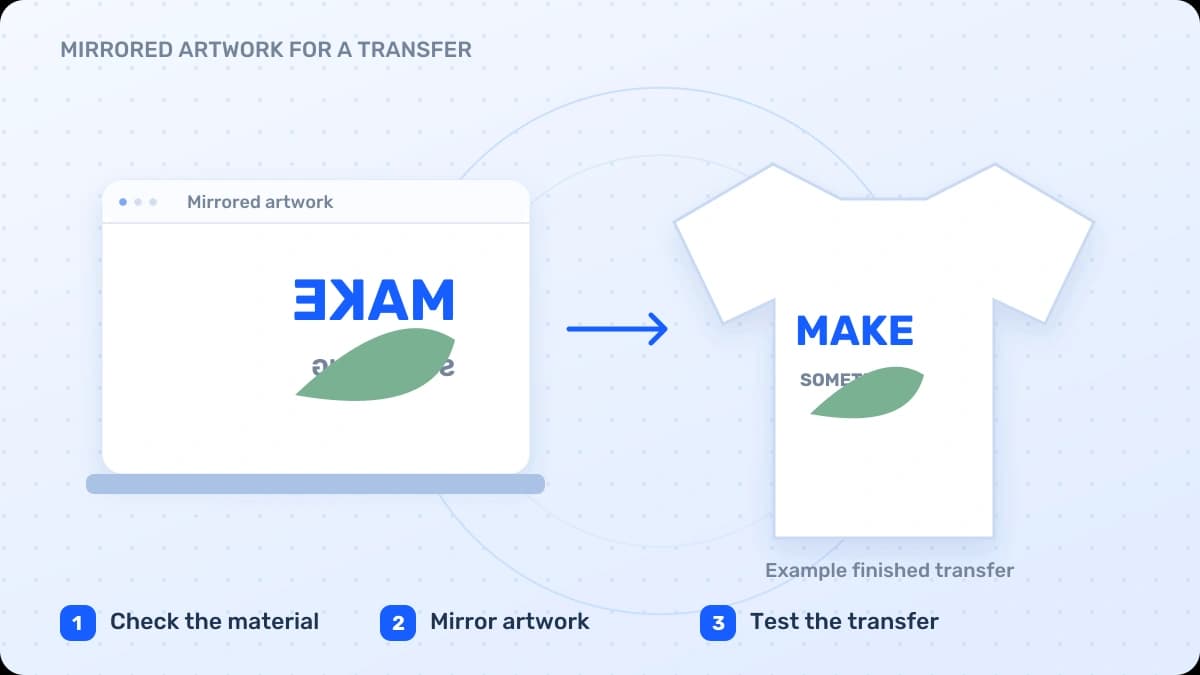
There are two different cases. If a word is part of a flat photograph, flipping the photo reverses the word as pixels. If the text lives on its own editable layer, you can leave the text unchanged while reflecting only the surrounding artwork. When preparing mirrored print artwork that intentionally needs reversed lettering, check whether the printer or transfer software applies an additional mirror automatically.
Logos need similar care. Reversing the shape of a logo may be unacceptable under brand guidelines even if the overall layout looks visually balanced. The safest approach is often to mirror a background photo and keep the brand assets in their original orientation.
Prevent Unwanted Quality Changes
A pure horizontal or vertical pixel flip does not conceptually require the image to be softened, but file handling still matters. Repeated JPEG exports can introduce compression artifacts. Unnecessary resizing changes pixel dimensions. Smart objects and source files help preserve editing flexibility. Export the final image once at the required dimensions and quality rather than repeatedly opening and saving lower-quality copies.
When you need to preserve transparency, PNG or another alpha-compatible format is preferable to JPG. Before publishing an image online, check its final rendered dimensions and color appearance in the browser. A reversed composition is not ready until the export looks correct outside Photoshop too.
Mirror a Photo Without Opening Photoshop
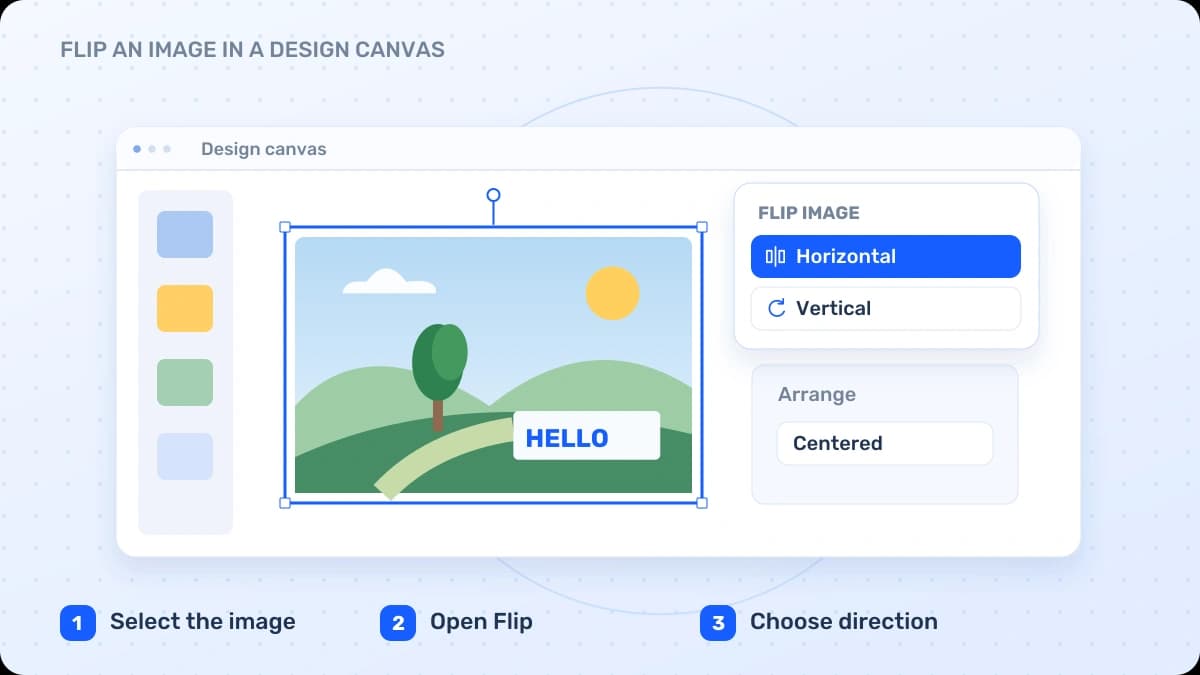
If you only need to flip a single JPG, PNG, or WebP file, a browser tool is faster than launching a full desktop editor. Use SocialCropKIT's free mirror image tool, select the horizontal or vertical direction, inspect the preview, and download the output. Use Photoshop when precise layers, masks, retouching, or advanced compositing are essential.
For a lighter design workflow, explore our Canva mirroring guide. For physical transfers, read how to mirror an image for printing before sending a reversed file to a printer.
Frequently Asked Questions
When should I flip the Photoshop canvas instead of one layer?
Flip the canvas when the whole composition needs to reverse. If only one object should change, select its layer and use a layer transform. Canvas-wide and layer-only flips affect different selections, so check what is selected before applying the change.