How to Flip a Photo on Android Using Google Photos
A picture can have the right colors and lighting but still face the wrong direction. Maybe a selfie looks reversed, a person is looking off the edge of a social post, or a label appears backwards. Android phones offer several ways to flip a photo horizontally, and many include a built-in editor. Google Photos has a mirror control on Android, while Samsung Galaxy devices offer their own Gallery editing tools.
 By John D.SocialCropKIT Editorial
How to Mirror a Photo in Google Photos
Google introduced horizontal mirroring in its Android Google Photos editor in 2025. That detail matters because older tutorials may incorrectly say you must install another app to reverse a photo. Google currently documents a Mirror control within the photo editing workflow. Depending on your app version, the exact icon position may vary.
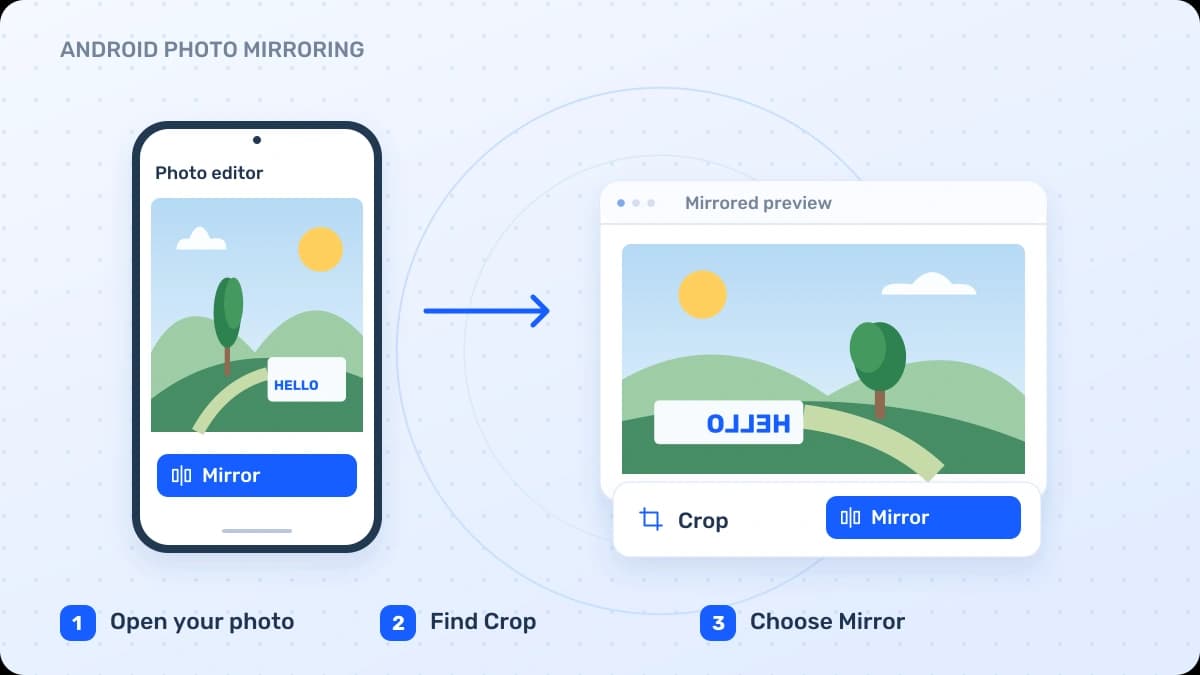
Step 1: Open the photo and tap Edit
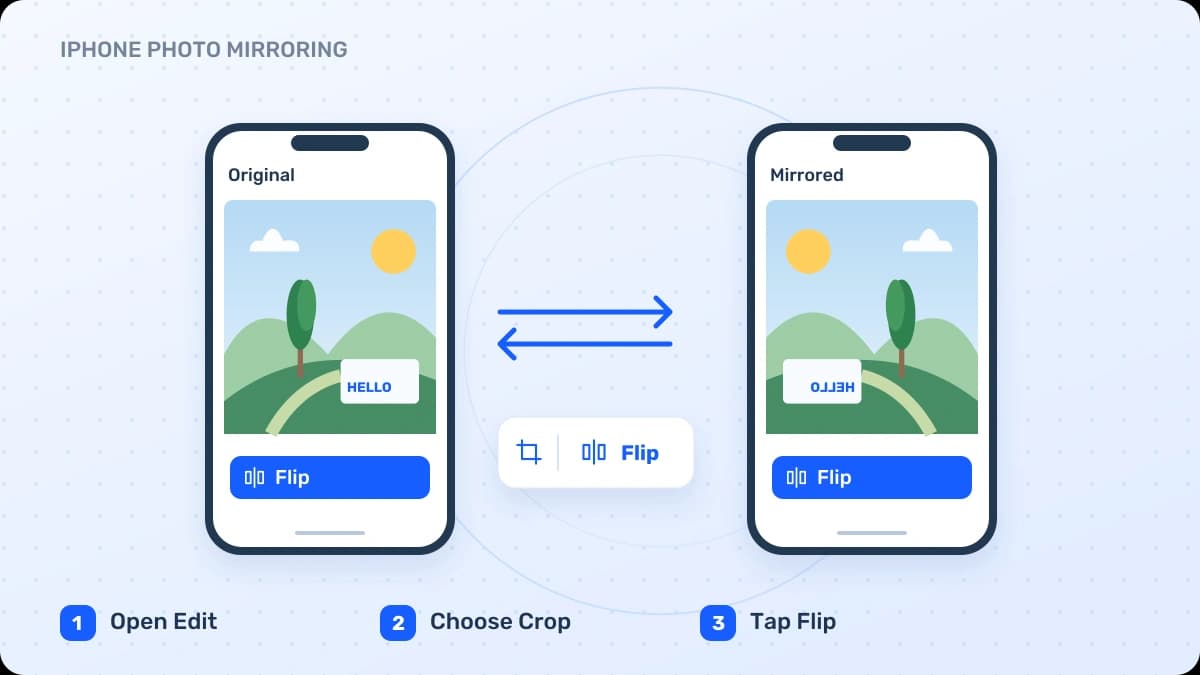
Launch Google Photos, select the picture, and tap Edit. Use the original image where possible. Photos copied through messaging apps can have smaller dimensions, which will not improve when you reverse them. A directional detail such as text or a street sign will help you judge the new orientation.
Step 2: Find Crop and the Mirror icon
Open Crop, then look for the Mirror or flip icon. Google's help describes the Mirror control as an image flip. Tap it once to swap the left and right sides. Do not confuse it with Rotate, which turns the photo around its center rather than reflecting it across a vertical axis.
Step 3: Inspect the picture and save
Check whether the subject, text, and background look correct. Save the edited picture using the options shown in your app. If your version offers Save as copy, choose it when you want to preserve the initial file as well. If a particular device does not show the Mirror control, update Google Photos and check the editor again; feature availability can differ across versions and platforms.
How to Flip an Image in Samsung Gallery
Samsung Galaxy phones commonly include a separate Gallery app with image editing built in. Open Gallery, select the photo, and tap the pencil-shaped Edit icon. Look for the Transform or crop-related controls, then choose Flip. Samsung's support documentation distinguishes Flip from Rotate and provides options to save a copy of the edited photo.
Keep an original copy when editing
For a product photograph or an important personal photo, use Save as copy when it is available instead of replacing the only source. If you need to compare multiple versions, label the files by orientation, such as portrait-original.jpg and portrait-mirrored.jpg. Consistent file names are especially helpful when uploading images to a website or client project.
What about Pixel and other Android brands?
Not every Android phone has the same Gallery interface. Some rely on Google Photos; others include manufacturer-specific apps. Find the editing workspace and look for terms such as Mirror, Flip, Transform, or Crop. If the built-in controls are difficult to locate, a web-based image flipper works across brands as long as your browser can open the file.
How to Mirror a Photo Online on Android
Open SocialCropKIT's mirror image tool in Chrome or another supported browser. Select your image, choose Flip Horizontal, and review the preview. Download the result when the orientation is correct. This method is convenient when you do not want to depend on the phone manufacturer's editor or when you need a specific downloadable image format.
Use Flip Vertical only when you mean to reverse top and bottom. If the photo is sideways, use rotation instead. A browser download may be saved to the phone's Downloads folder, Files app, or another destination configured in your browser. The finished image is separate from the image still stored in Google Photos unless you explicitly import or save it there.
Horizontal vs Vertical Flip: Which Should You Use?
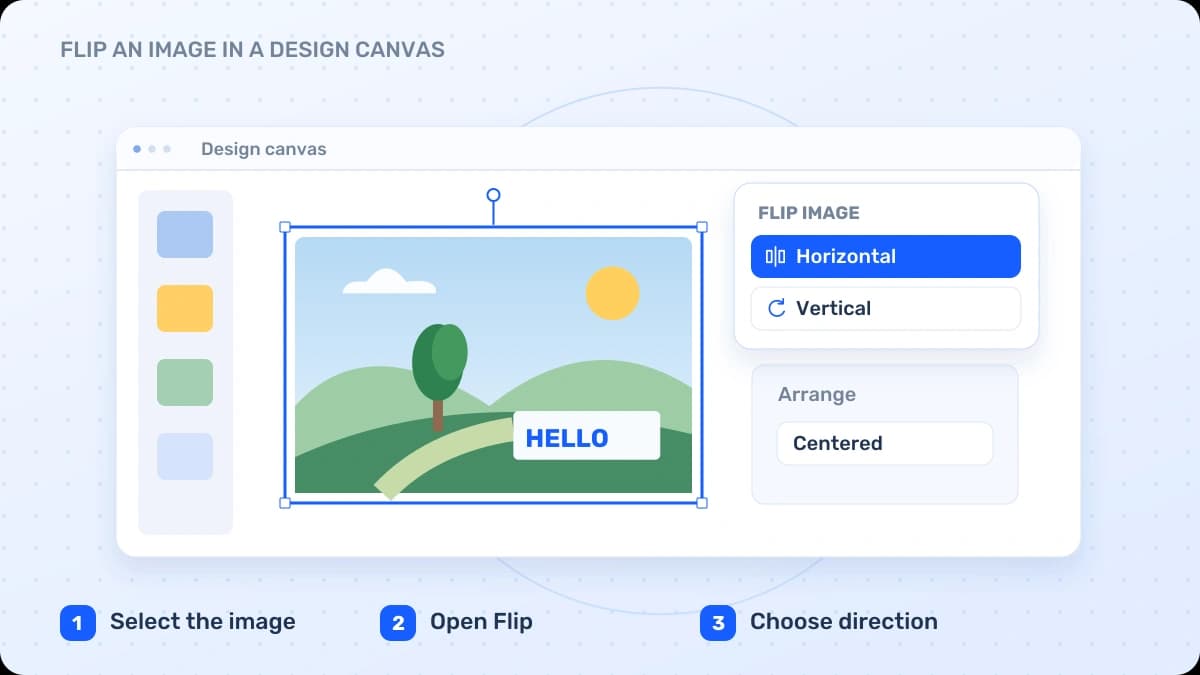
A horizontal flip creates a left-right mirror image. A person looking right will look left; letters and logos turn backwards. A vertical flip swaps the upper and lower parts of the scene. The horizon that was at the bottom will appear at the top. These commands are geometric transformations, not AI alterations. They do not remove the background, rebuild facial details, or recognize written words.
A 180-degree rotation can look similar to a vertical flip in some abstract images, but the results differ when the picture includes text or a clearly directional object. If you need an upside-down visual effect, experiment and inspect the output carefully. If you need to correct a mirrored selfie, horizontal flip is the usual starting point.
How to Fix a Mirrored Selfie on Android
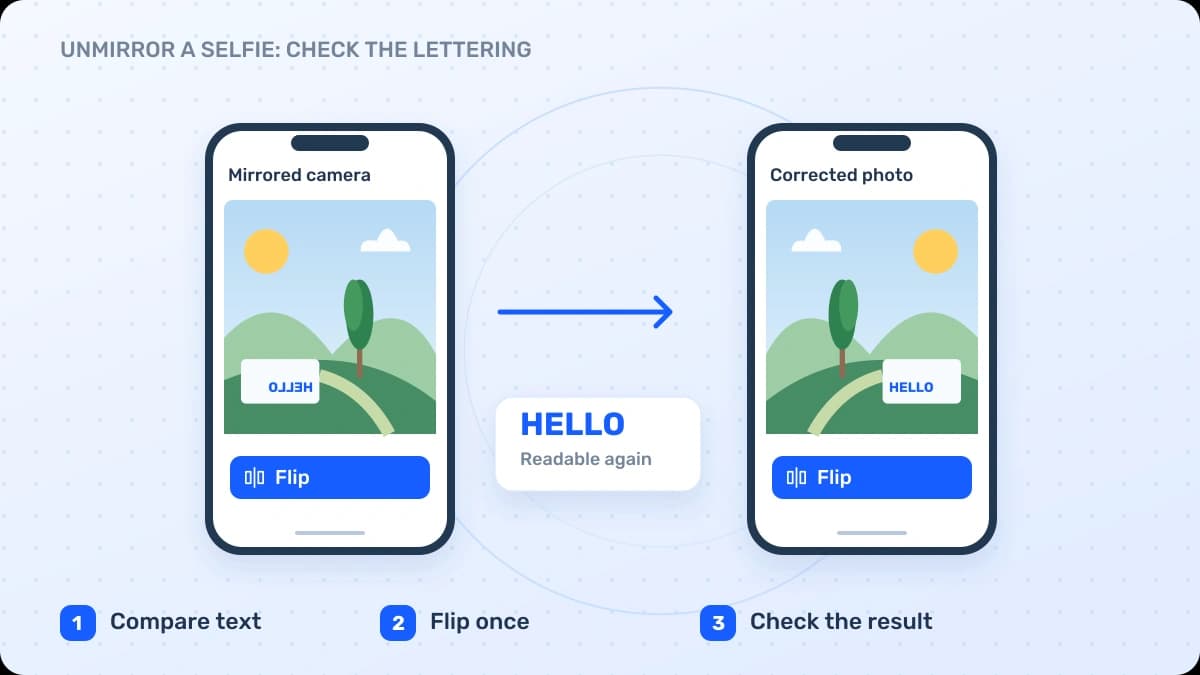
Selfie cameras can display a reflected live preview, and some phone cameras save pictures using a different mirror preference. If a saved selfie looks wrong, open it in Google Photos or Gallery and try one horizontal flip. Test with readable lettering in the frame: a sign, T-shirt logo, or package label tells you whether the view is mirrored.
Some Android camera apps include a setting labeled Mirror selfies, Save selfies as previewed, or an equivalent phrase. The name and location vary by device and software version. Check the camera settings on your particular phone rather than following instructions written for a different manufacturer. Changing the setting normally affects future pictures, not images you captured last month.
Best File Format for a Mirrored Android Picture
Choose JPG for everyday photo sharing when compatibility matters. PNG is a good fit for detailed screenshots, drawings, or files containing transparency. WebP can provide compact web images if the destination application accepts it. A flip can keep the same width and height, but exporting to a different format may change compression and metadata. When text needs to stay sharp, inspect the saved file at full resolution rather than judging only the preview.
If your picture already looks fuzzy, mirroring will not sharpen it. Avoid repeatedly saving and recompressing the same JPG. Edit once from the highest-quality version available. For important graphics, compare the source and download dimensions before posting.
Troubleshooting Android Image Flipping
I cannot find Mirror in Google Photos. Update the Android app and inspect the Crop tools. The feature's availability and placement can differ by version. My phone only rotates the picture. Look for Flip rather than Rotate, or switch to a browser editor. The saved file is missing. Open Downloads or the browser's download history. The writing is backwards. That is expected when you mirror a picture containing readable text.
If the final result is for a business listing, catalogue, instructional document, or another factual use, consider whether mirroring changes real-world details such as the location of a button or a brand label. A pleasing composition is useful, but accuracy matters more when someone depends on the image for directions.
For additional help, see how to mirror a photo on iPhone or our guide to unmirroring a selfie.