How to Mirror an Image in Word: Reverse Pictures and Text
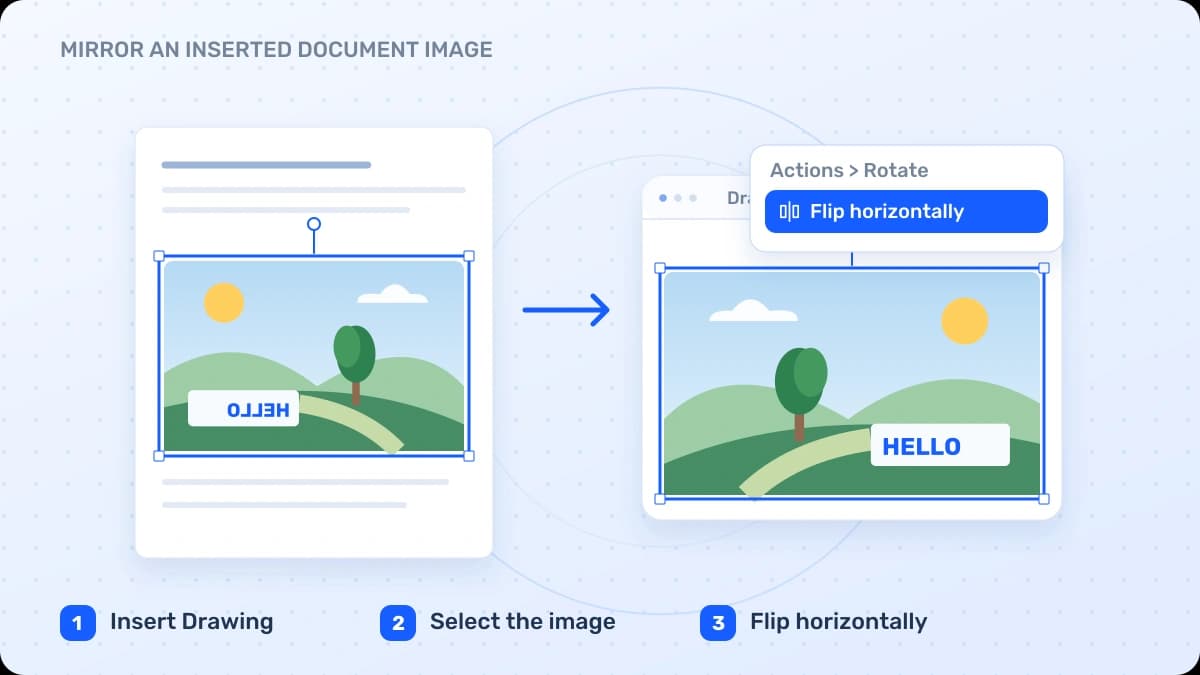
A picture that looks correct in a photo editor may face the wrong direction after you place it in a document. Perhaps an arrow points away from a paragraph, a portrait looks off-balance, or a printed transfer needs a reversed design. Microsoft Word includes built-in horizontal and vertical flip commands for pictures, so you can make these adjustments without purchasing another editing program. The key is to select the picture itself and use the correct Rotate menu option.
 By John D.SocialCropKIT Editorial
How to Flip an Image in Microsoft Word
The following steps match the familiar Word desktop workflow. Microsoft documents the commands under Picture Format, although ribbon labels and placement can vary across Windows, Mac, and web versions. If you do not see the expected controls, make sure the image is selected and check whether your Word edition supports the same editing options.
Step 1: Insert or select the picture
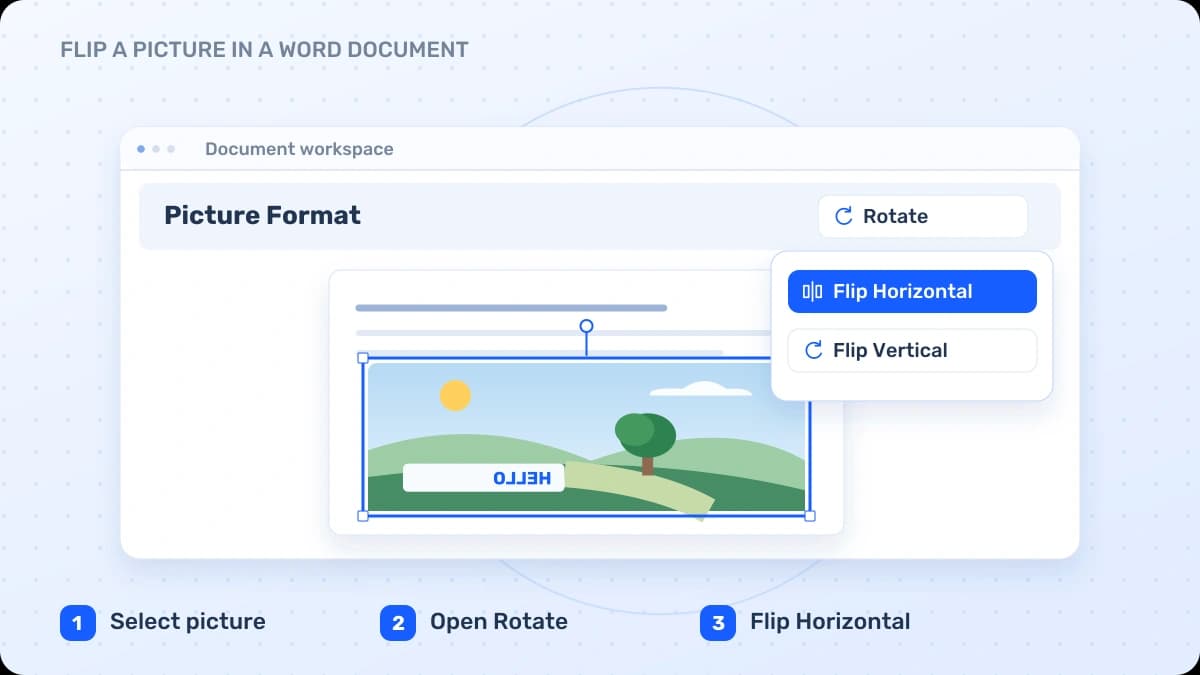
Open your document, then use Insert > Pictures to place an image where you need it. If the photo is already present, click it once. Selection handles should appear around its borders. The Picture Format tab usually becomes available after you select a picture; without that selection, the ribbon may show unrelated document controls.
Step 2: Open the Rotate menu
Find Rotate in the picture formatting options. Depending on window size, it may be inside the Arrange group or another condensed menu. The Rotate label is slightly misleading because its menu also contains mirror commands. Do not choose Rotate Right 90° if all you want is a left-right reflection.
Step 3: Choose Flip Horizontal or Flip Vertical
Click Flip Horizontal to reverse the picture from left to right, or Flip Vertical to swap top and bottom. The result should appear directly in the document. If it is not what you intended, use Undo and try the other command. Save the Word file when you are satisfied, and export a PDF if you need a printable document that retains a fixed layout.
What Is the Difference Between Horizontal and Vertical Flip?
Horizontal flipping reflects a picture across a vertical centerline. A person looking left now looks right, and lettering visible in the photograph becomes reversed. Vertical flipping reflects the picture across a horizontal centerline, so the upper and lower parts exchange places. A 180-degree rotation is different again: it turns the whole image around its center and changes both directions simultaneously.
Common reasons to use each transformation
Use horizontal flip for a portrait facing the wrong way, a reflected photo effect, or artwork designed for a transfer method that specifically requires reversed printing. Use vertical flip for deliberate upside-down compositions or a bottom reflection in a graphic. Use rotation when a scanned page is sideways or an inserted image was captured at the wrong camera angle.
Does Word change the source photo?
Editing a picture inside a Word document changes its appearance there. It does not necessarily replace the original image stored elsewhere on your computer. If you need a reversed standalone picture for another program, export or save an appropriate copy, or make the mirror edit with a browser image tool and then reinsert the result.
How to Mirror Text in Microsoft Word
Mirroring a normal photograph is straightforward; mirroring editable text is a separate task. If you flip a picture that contains flattened lettering, those letters flip as pixels. But a regular Word paragraph is not a picture and does not behave like one. Microsoft documents a separate method for WordArt and certain text-containing shapes using 3-D rotation options.
Flip a picture containing text
If the word is printed on an object in a photograph, select the whole photo and use Flip Horizontal. The lettering will reverse naturally along with the rest of the photo. This is useful when intentionally creating transfer artwork, but it is usually undesirable in a business report or product description. Check every label after performing a flip.
Mirror WordArt or shape text
For supported WordArt or shapes, select the object, open its text effects or 3-D rotation settings, and use the appropriate horizontal rotation. The available controls differ across versions and object types. If you need absolute reliability, make a test document with a short word before transforming an important print layout. Do not expect a picture flip command to reverse an ordinary paragraph in place.
How to Create a Mirror Image for Printing in Word
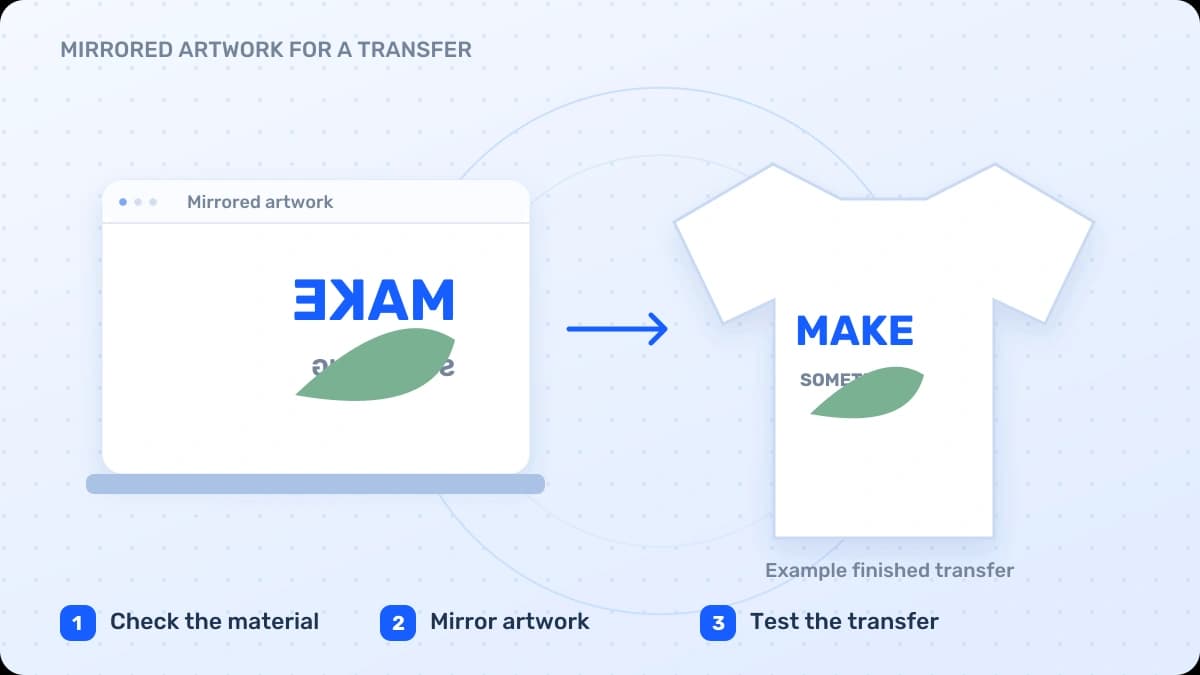
Some people search for “mirror image in Word” because they are preparing a T-shirt transfer. Before flipping anything, read the instructions for the specific transfer paper or printing method. Certain light-fabric transfers require a reversed design; many dark-fabric transfer products do not. The printer driver or the transfer template may automatically mirror the output, making an additional manual flip a mistake.
If your product requires a mirrored file and your print pipeline will not reverse it automatically, flip the relevant picture horizontally in Word. Print a draft on plain paper. Place the test beside the intended design and check all text and directional symbols. Only use the actual transfer sheet after confirming which orientation the final process needs.
Keep the Document Layout Neat After Flipping
The picture may stay in approximately the same box, but the visual weight of the page can shift. A person who previously looked toward the center of the page may now look outward. Inspect the position of captions, arrows, and surrounding paragraphs. If you resize the picture, preserve the aspect ratio to avoid stretched faces or distorted logos. When the image sits beside body text, choose a wrapping option that keeps the layout readable at different zoom levels.
For handouts, remember that the reader needs to understand the image, not just admire the design. Use descriptive alt text in Word when the picture conveys meaning, and explain deliberate mirrored lettering in a nearby caption. A reversed visual should not create avoidable confusion for someone using assistive technology or following instructions.
Mirror an Image Before Adding It to Word
When your goal is a separately downloadable picture, try SocialCropKIT's free image mirror tool. Select the JPG, PNG, or WebP, flip it horizontally or vertically, preview the output, and download the edited file. Insert that file into Word. This keeps the orientation change independent of the document and makes it easier to reuse the same picture in slides, email, or web pages.
The browser-based workflow is also helpful when Word for the web has fewer available formatting controls than the desktop application. It does not require AI or a paid photo-processing service for a simple reflection.
Common Word Mirror Image Problems
I cannot find Picture Format. Select the photo itself and check the ribbon again. I only see Rotate Right and Rotate Left. Expand the Rotate menu; a flip option may be further down. The picture looks upside down. You may have chosen vertical flip or 180-degree rotation. The words are backwards. That is the expected result when mirroring a flattened image containing text.
My print came out reversed twice. Check both the Word document and the printer or transfer software for enabled mirror settings. A double mirror returns the original left-right direction. The image becomes blurry. Inspect original resolution and export settings; a flip is not an image enhancer.
For related workflows, read our Google Docs image flipping guide or the more detailed printing and heat-transfer mirror tutorial.
Frequently Asked Questions
Can I reflect editable WordArt the same way as a picture?
Editable WordArt or shape text may require its own text effects and 3-D rotation controls. Treat it as an editable text object rather than a flattened photo, and check the available controls for that object.