How to Flip an Image in Google Docs: Mirror Pictures Step by Step
Google Docs makes it easy to insert a photo into a report, worksheet, or presentation outline, but the ordinary image toolbar does not provide the same direct flip command found in full photo editors. The practical workaround is to use Drawing, where supported images can be transformed, or to mirror the picture before inserting it into the document. Both methods let you fix a backwards image without rebuilding your entire document.
 By John D.SocialCropKIT Editorial
Can You Flip an Image Directly in Google Docs?
Google Docs supports inserting, positioning, resizing, cropping, and rotating pictures. However, flipping an inserted image horizontally is not typically exposed as a simple one-click action in the main document's image controls. Google Docs product experts recommend opening the picture inside a Drawing and using its flip command. That distinction explains why some tutorials say a flip option exists while others say Google Docs cannot do it: the command is in a related editor, not necessarily the main Docs image toolbar.
How to Mirror a Picture with Google Docs Drawing
This method is useful when the image is already in your document and you want to keep editing the document in the same browser tab. The labels below reflect the common desktop workflow, but Google occasionally changes menu wording. If a menu differs, inspect the Drawings toolbar for a comparable rotate or flip action.
Step 1: Open the Drawing editor
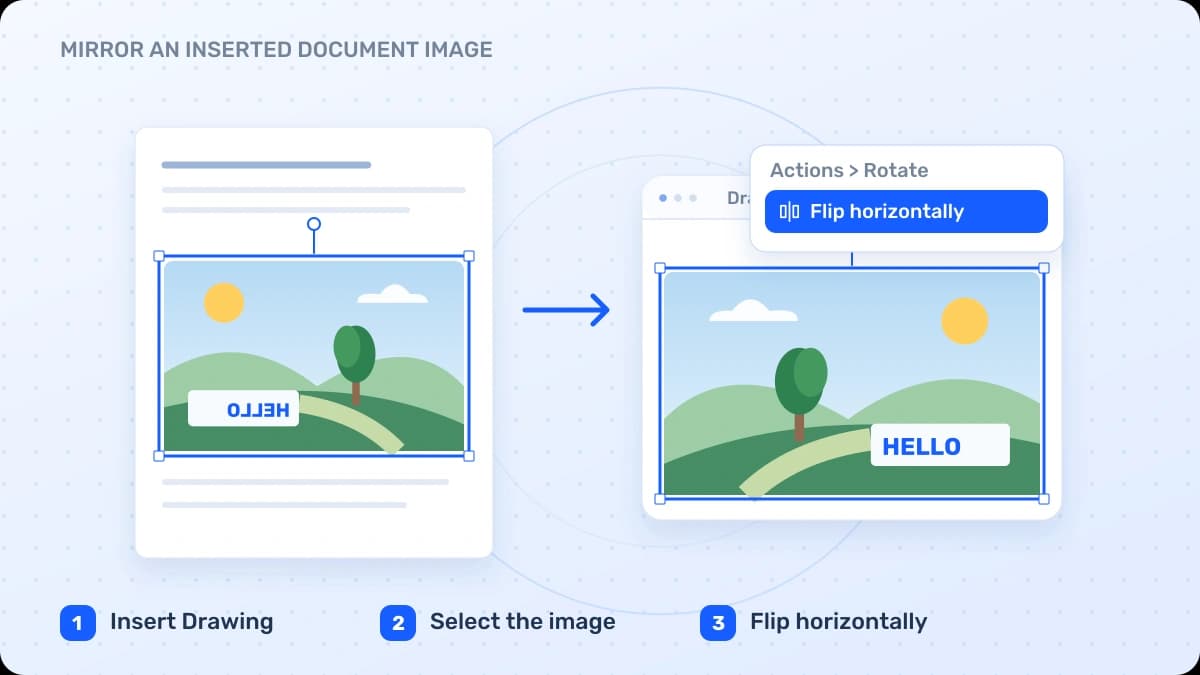
Place the cursor near the location where the picture should appear. Choose Insert > Drawing > New. A drawing workspace opens on top of the document. If the image is already in the document, copy it first, then paste it into the drawing. Otherwise, use the image-insert control inside Drawing to add a file.
Step 2: Select the image inside Drawing
Click the inserted photograph so the object is selected. It is important to select the image rather than the surrounding canvas. A drawing can also contain text boxes, arrows, and shapes; transforming the wrong item will not fix your photo. Look for the Actions menu and its Rotate submenu where available.
Step 3: Choose Flip horizontally or vertically
Select Flip horizontally to reverse the photo left to right, or Flip vertically to exchange top and bottom. Use horizontal flipping when correcting a mirrored portrait or a backwards scan. Use vertical flipping only when the actual desired effect is upside-down reflection. The image inside the drawing should immediately show the new orientation.
Step 4: Save and close the drawing
Choose Save and close. The transformed drawing appears in the Google Doc, where you can adjust placement, wrap behavior, and size. If the picture needs more editing, open its drawing again rather than repeatedly exporting and reimporting compressed copies. For a reusable standalone image file, the second method below may be simpler.
Faster Method: Flip the Image Before Inserting It
If you are preparing several documents or need the picture for more than one application, mirror it as an independent file first. Open SocialCropKIT's mirror image editor, choose the picture, and apply a horizontal or vertical flip. Download the result. Return to Google Docs and use Insert > Image to add the saved photo from your computer or another supported location.
Why this method is useful
You keep a normal image file separate from the Docs drawing container. That makes it easier to use the same orientation in Google Slides, an email, a website, or a PDF export. It also simplifies comparison: save the original and mirrored versions under distinct names. If the new orientation is wrong, you can replace the inserted image rather than navigating several nested editing controls.
Horizontal Flip vs Rotation in Google Docs
Rotating and flipping may both seem like orientation changes, but they do different jobs. A 90-degree rotation turns the image sideways; a 180-degree rotation turns it upside down. A horizontal flip makes a left-right reflection without changing which edge is at the top. When inserting a photo of a person holding a sign, this distinction becomes obvious because a horizontal mirror reverses the lettering.
Does flipping change a document's page layout?
The image's content changes direction, but the image container can still affect the surrounding text. If the photo looks too large, adjust its width and positioning separately. Decide whether it should appear in line with text, wrap around paragraphs, or sit in a designated space. Keeping the mirrored image at a consistent size helps prevent awkward jumps when you export a PDF or share the document.
How to Flip an Image for a Worksheet or Printable Document
Teachers and office workers often need reversed graphics for worksheets, tracing activities, demonstrations, and handouts. For a normal worksheet, make sure words, arrows, and labels remain readable. For a tracing or transfer exercise, the opposite may be intentional. State clearly in the document why an image is mirrored, especially when learners might mistake the reversed version for a factual illustration.
Use a test page before printing multiple copies. A mirror image may look correct on screen yet be reversed again by a printer option labeled Mirror, Reverse, or Transfer. Do not apply the transformation twice unless that is what the project requires.
Common Google Docs Image Flip Problems
I cannot find Flip on the main toolbar. That is expected in many Google Docs workflows. Open the Drawing editor or mirror the image in a separate browser tool. The Actions menu is missing. Check that you are actually inside Drawing and not selecting the picture directly on the Docs page. The wrong shape flipped. Reopen the drawing and select the image itself. The writing became backwards. A full-image mirror reverses text just like every other visible element.
My document changed formatting. Check image wrapping, alignment, and size after inserting the edited file. I only want to reverse one item in a complex diagram. Keep the diagram's labels and shapes separate where possible; selecting the entire flattened diagram reverses everything, including words.
When to Use Docs, Drawing, or a Photo Editor
Use regular Google Docs for document layout, paragraphs, tables, and captions. Use Drawing when the picture is embedded in a small diagram and you need a quick transformation. Use a dedicated mirror tool for simple standalone files or when you want to reuse the result across applications. None of these methods requires inventing a new picture; they only change how the existing one is displayed.
If you also prepare documents in Microsoft's editor, see how to mirror an image in Word. For system-level editing before inserting a document image, our Windows 11 flip guide covers Paint and Photos.
Frequently Asked Questions
Why is there no Flip button on a regular Google Docs image?
It is generally not a direct command in the regular document image toolbar. Use Insert > Drawing > New, select the image, then look under Actions > Rotate for the flip options.