How to Flip an Image on Windows 11 Using Paint and Photos
You do not need an expensive graphics suite to mirror a picture on Windows 11. The operating system includes basic image-editing options, and a lightweight browser tool can help when you want a separate downloadable photo. Whether you need to reverse a selfie, change the direction of an illustration, or prepare a graphic for a document, the same rule applies: choose Flip Horizontal for left-right reversal and Flip Vertical for top-bottom reversal.
 By John D.SocialCropKIT Editorial
How to Flip an Image in Microsoft Paint
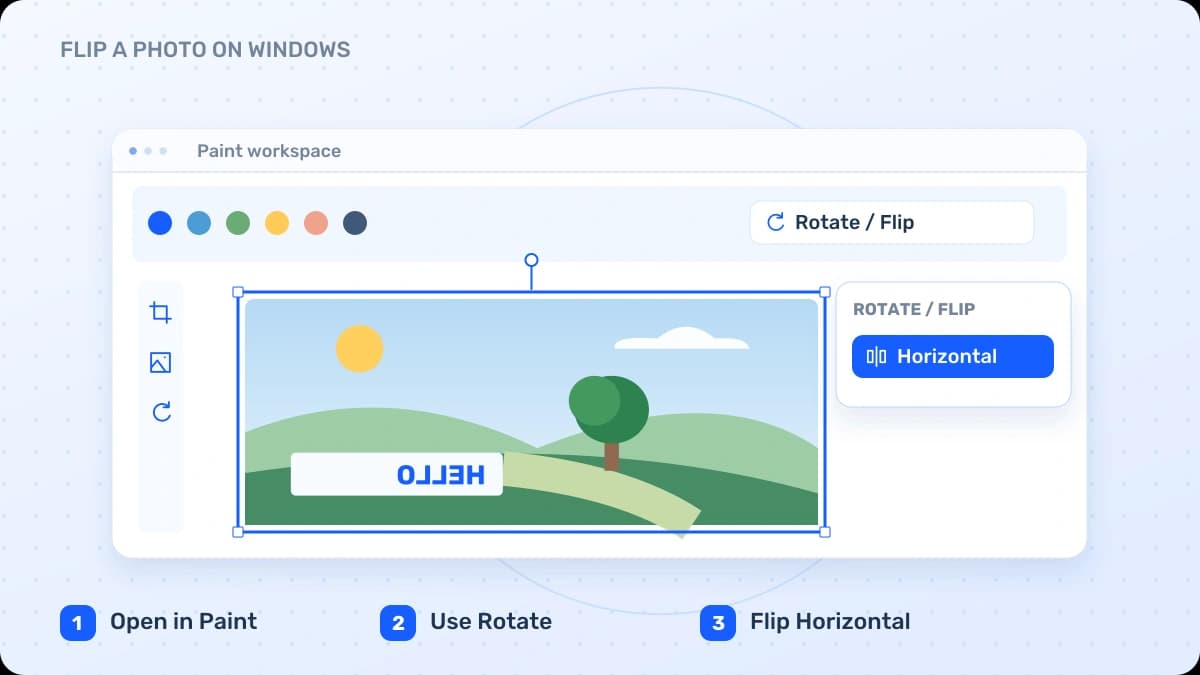
Paint is useful for a quick edit because it works with common picture files and offers recognizable image controls. Open Paint from the Windows Start menu, then use File > Open to select the photo. If you want to preserve the original, create a copy before making changes or use Save as for the finished file.
Step 1: Open the picture you want to mirror
Choose a file from your computer. Make sure it is the actual high-resolution image rather than a tiny thumbnail copied from a messaging app. If you need to mirror a particular object rather than the entire picture, check whether you have an active selection. Some Paint operations behave differently when a portion of the canvas is selected.
Step 2: Locate Rotate or Flip
Find the Rotate control in the Paint toolbar or image editing area. Choose Flip horizontal to reverse the complete picture from left to right, or Flip vertical to reverse it from top to bottom. The exact menu layout may differ slightly between Windows 11 updates, but the commands are commonly grouped with rotation choices.
Step 3: Inspect and save a copy
Check the image after applying the transformation. Look at lettering, logo shapes, and other visual clues that tell you whether the reflection is correct. Select File > Save as and choose a suitable filename and format. For a detailed logo with transparency, PNG may be more appropriate than JPEG. Avoid overwriting the original unless you intentionally want to replace it.
How to Mirror a Photo in Microsoft Photos
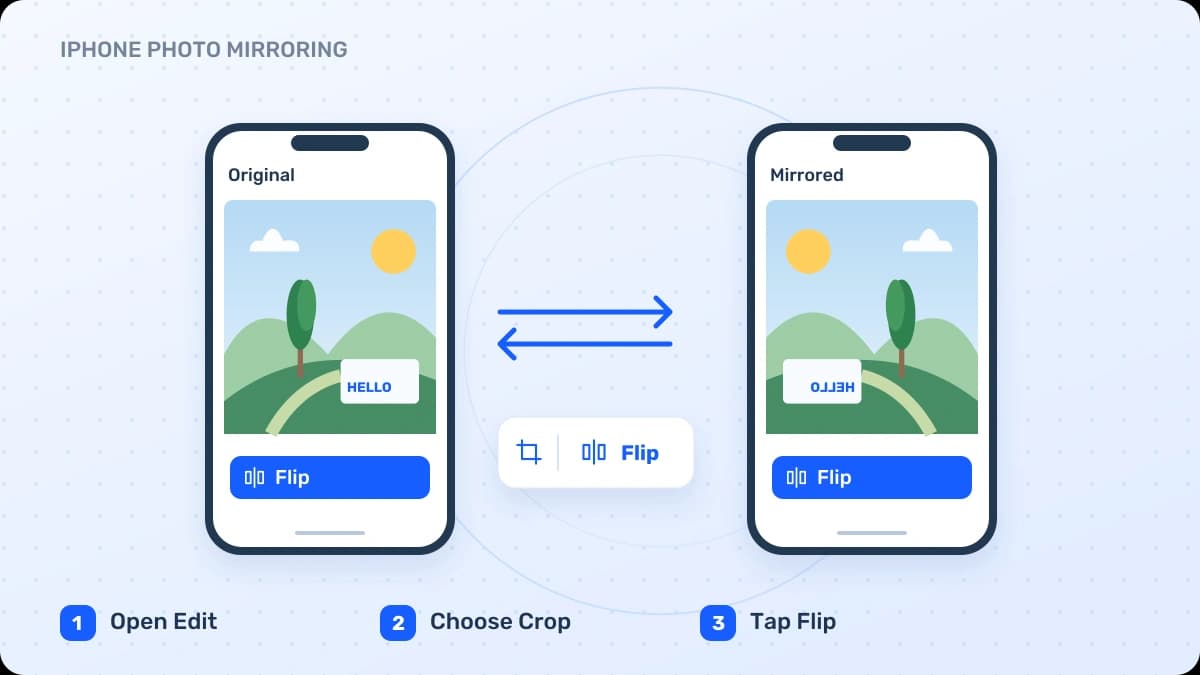
Microsoft Photos is another built-in Windows editing application. Open the image in Photos, select Edit image, and inspect the Crop area. Microsoft's current help lists horizontal and vertical flip controls among the photo orientation options, together with rotation and straightening. The buttons can appear as arrows beside a small image icon rather than spelling out the word “Flip.”
Choose the correct icon
A horizontal flip uses a left-right reflection symbol. A vertical flip uses a top-bottom reflection symbol. Rotate clockwise and Rotate counterclockwise are separate actions. If the picture turns sideways when you meant to reverse it, undo the change and choose the reflection control instead. Preview the output before saving.
Save the edit without losing the source
Use the available save-copy option when possible. A separate version is especially useful if the picture belongs to a presentation, a blog post, or an important photo archive. When you export the new file, compare its dimensions with the source and check that any transparent background survived the chosen format.
Flip Image Horizontally vs Rotate Image on Windows
Imagine a person standing on the right side of a photo and looking out of the frame. A horizontal flip places that person on the left, looking toward the opposite side. The person stays upright. A 90-degree rotation, however, makes that person sideways. A 180-degree rotation makes the entire scene upside down. A vertical flip puts the top at the bottom but does not change left and right.
Why the distinction matters for screenshots
Instructions and screenshots contain buttons, menus, and text that users expect to find in a particular place. Mirroring a screenshot reverses the interface and its writing; it does not produce a legitimate picture of the app running on the opposite side of the screen. If your goal is to teach someone where a real control lives, do not publish a mirrored screenshot unless you clearly label it as an illustration.
Mirror an Image Online on Windows 11
For a straightforward browser-based option, open the SocialCropKIT image mirror tool. Select a supported photo, use the horizontal or vertical flip control, and compare the result with the original preview. Download the finished PNG, JPG, or WebP. This can be convenient on computers where you do not want to edit the original file in Paint or Photos.
When a web tool is simpler
A dedicated image flipper avoids navigating multiple desktop menus just to reverse a picture. It also makes sense when you are working in a browser-based publishing system and need a ready-to-upload file. For basic pixel mirroring, the tool can process the selected photo locally in the browser without a paid API or a photo-editing account.
Fix a Backwards Photo or Selfie on a PC
If an imported selfie looks strange, try a horizontal flip and check a familiar detail. Writing on clothes and signs is a useful clue. When that lettering is backwards, flipping once can make it readable. If it was already correct, do not mirror it simply because one facial angle feels unfamiliar. People are used to looking at mirror reflections of themselves, so the opposite orientation can feel different without being wrong.
The same check works for scanned photos, product pictures, and older images saved from other devices. If the photo was not mirrored but merely rotated, apply an appropriate angle instead. Use the original file as the reference whenever you are unsure.
Which Image Format Should You Save?
JPG works well for standard photographs and broad software compatibility. PNG supports transparency and sharp flat graphics. WebP is widely used on websites but may be less suitable for some legacy software. Basic flips do not require a change in width or height, but an exported file can change in size because of compression settings or format conversion. A 90-degree rotation, unlike a simple flip, also swaps the image's nominal width and height.
Avoid repeatedly opening, editing, and saving the same compressed JPEG. If a high-quality version is available, start there and export the finished photo once. A mirror tool is for orientation, not resolution repair or noise reduction.
Troubleshooting Windows 11 Image Flipping
Paint flipped only part of the picture. Clear an unintended selection and repeat the transform. Photos does not show the expected icon. Update the Photos app or try Paint. The file saves with a white background. You may have exported a transparent image as JPG, which cannot retain transparency. Text or logos are reversed. That is expected because the entire photo changes direction.
The image appears cropped. Check whether a crop or resize was applied separately. The exported photo looks softer. Compare source resolution, final dimensions, and compression. A mirror operation cannot reconstruct pixels missing from the source.
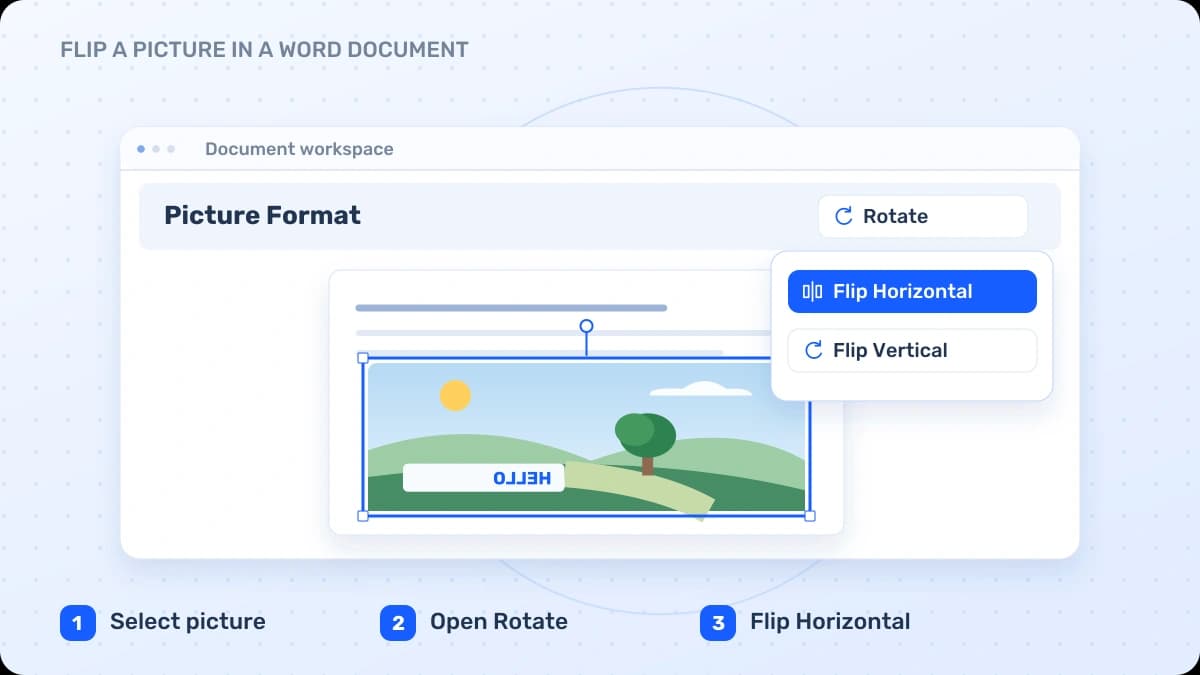
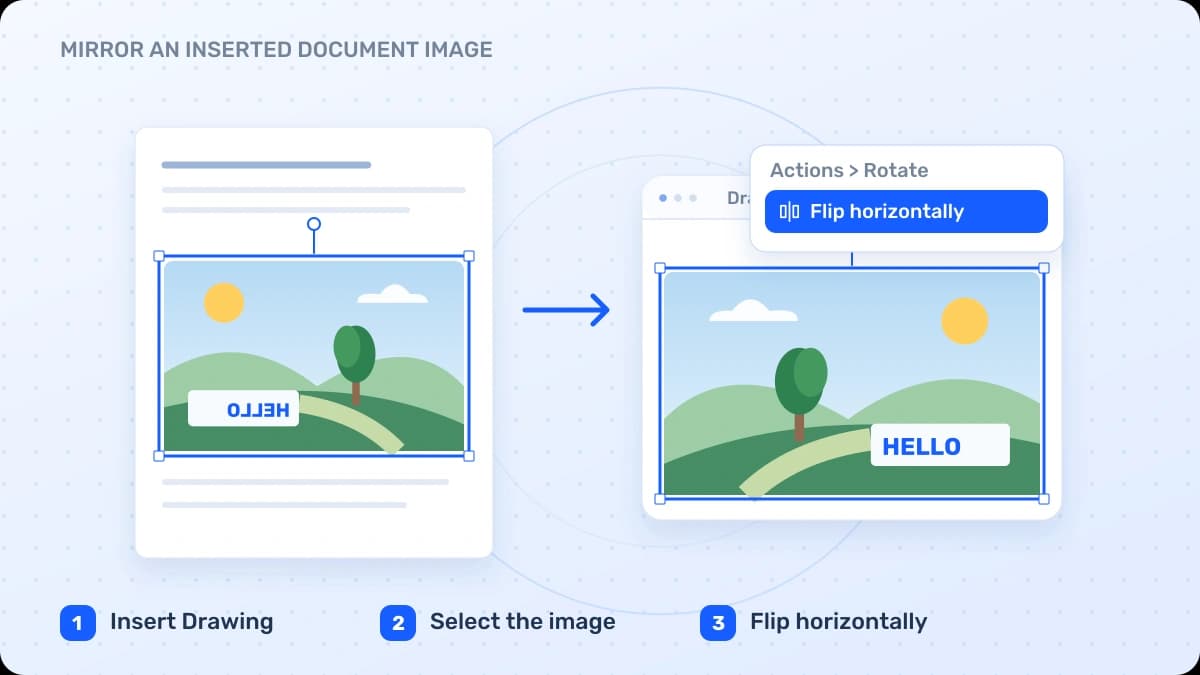
When the final picture is going into a document, read how to mirror an image in Word or how to flip an image in Google Docs. Both explain how orientation interacts with document layout.